Dynamics 365 Troubleshooting, Limitations, and Performance
This portion of the document lists current known issues and limitations that may be encountered in usage of the Integration Framework. Most should only be encountered in limited edge cases.
Configuration
As highlighted in Rules Configuration and Settings the Test button on the configuration page can be used to validate that everything is configured correctly for the end-to-end connectivity required to execute rules. The Test button validates three areas which are described in more detail below:
Execution Service Connectivity
The first step in the test is validating connectivity to the Rule Execution Service. Errors here could indicate a variety of issues, such as misconfigured relay key or address, or network connectivity issues between Dynamics or the execution service and the relay. Double-check the relay config values in both the configuration page in Dynamics and the app settings on the execution service site.
An error here can also be the result of a critical error within the execution service. If a response is returned from the execution service but it is an error, the validation message will be prefixed with 'Error returned from rule service', and the exception message. Further exception details can usually be found in the Application Event Log of the execution service server.
Dynamics Connectivity
Once the test request reaches the execution service, it will attempt to validate the connectivity from the execution service back to Dynamics. Errors here are usually a result of issues in the connection string. This can include an incorrect Dynamics instance URL, incorrect credentials, or a malformed connection string. Even if the credentials are correct there can be issues with the service account used, such as the account not having the correct permissions or licensing, or using username/password credentials for an account that requires MFA. Failures here can also be due to network restrictions between the execution service and the Dynamics API.
Catalog Connectivity
The final step is checking connectivity from the execution service to the rule catalog service. Errors here are usually a result of either an incorrect catalog URL or catalog credentials, but errors in the catalog service can also cause a failure here. A common issue, for example, is an invalid or expired license key on the catalog service.
Execution Runtime
Execution Service 1-Minute Timeout
Because of Dynamics default configuration, a 1-Minute Timeout may occur when a request to the Azure Relay takes longer than a minute to respond. This can occur because of latency between Dynamics and the rule execution service, or anything else that causes the rule execution service to take more than 1 minute to respond.
Plugin Execution 2-Minute Timeout
Dynamics plugin execution is configured to timeout when the plugin runs for more than two minutes. In online implementations there is nothing that can be done about this behavior because the plugin cannot be taken out of sandbox mode. Since On-Prem implementations must be run outside of sandbox mode, this timeout period can be changed by updating the configuration.
Missing Rulesets on Run Rules Drop-Down
If you have users who are missing rule sets on the Run Rules drop-down, verify that the user's role is set to "InRule Rule Executor". Running rules from the dynamics UI requires access to permissions not normally given to most users; the "InRule Rule Executor" role provides the minimum level of permissions needed to execute rules. See Getting Users Ready for more information.
Roles, Privileges, and Access
S2S User Settings
If the 'InRule Integration' user is being used with the associated 'InRule Integration Administrator' role, read privileges for the entities required for rule execution will need to be manually added to the role after installation or when a new entity type is created. For more information, please review Dataverse Connectivity and Authorization.
Missing Entity Privilege Error
If, after attempting to run rules, you see an error like the one below, make sure that the service account used by the Rule Execution Service is assigned a role with the permissions required to read all entities used during rule execution.

User Principal Permission Error
If your rule updates entity records, you may see an error like the one below when running rules. This is because by default any changes are saved using the current user's account. If the rule runner does not have access to any of the entities being changed, execution will fail with this error.

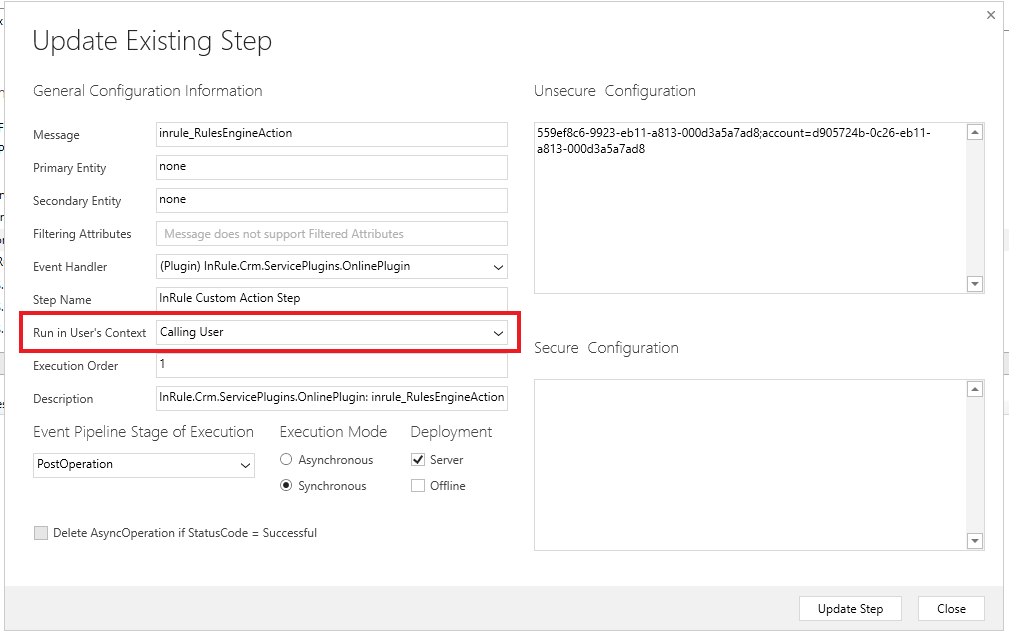
This error can be resolved in two ways. First, the user's permissions in Dynamics can be updated so that they have the required permissions. Second, the InRule Custom Action step registration can be updated with the plugin registration tool to run under a different user context. By default, this is set to 'Calling User', but if your rules need to update an entity that end users do not have access to, you can change it to 'System', or choose a specific user account that has access.
Using irX for Dynamics with Multi Factor Authentication (MFA)
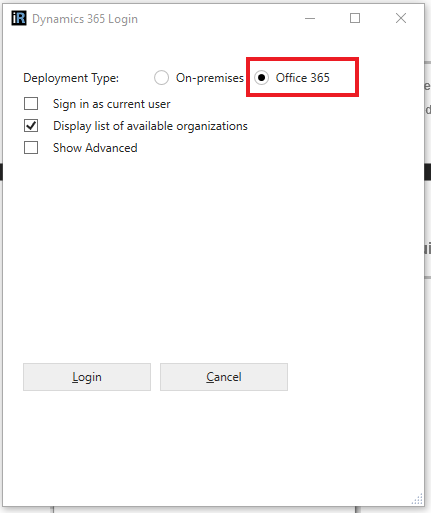
Advanced login options have been added in irX for Dynamics to allow users with MFA to authenticate. To authenticate in this manner select Use Advanced Login in the environment picker. This will reveal a Login to Dynamics 365 Environment button. Once selected, the advanced login form will be displayed. Select Office 365, enter your credentials, and complete the login process.
Usability
Updating Entity Status via Rules
Currently, irX supports the updating of an entity's status through rules for "standard" entities that can only swap states between "Active" and "Inactive," as well as for the Case entity. Given technical limitations around how Cases are set to the "Resolved" status through rules, doing so currently auto-defines the Case Resolution field as "Resolved by rules." This can be edited within Dynamics itself after the fact if you wish to change it, but there is no way to set the Case Resolution to anything different via rules at this time. Additionally, rules that update an entity from "Resolved" or "Inactive" back to any variety of "Active" that also update another field on the entity are not supported at this time. To support this operation, you will first need to reactivate the entity, then make any desired changes to any fields on that entity after the fact, rather than doing both in a single rule.
Other entities with similar "Resolved" states such as Order are not supported at this time.
On-Prem Execution Mode
Running the plugin in an On-Prem Dynamics environment requires running outside of Sandbox mode. Plugins in sandbox isolation mode run under partial trust, which prevents plugins from doing things like accessing the file system and registry. This also prevents reflection from being used, which is necessary for serializing Dynamics classes for communication over WCF. When using service endpoints to communicate with Azure Relay, Dynamics provides helper classes that handle this serialization, but no such classes are provided for On-Prem communication. It is worth noting that a side-effect of running outside sandbox mode is Dynamics will not write to the plugin trace-log.
Considerations with Advanced Login
- Sign in as Current User (SSO) for Office 365 is not currently supported
- If On-Premises connection is attempted with an Office 365 environment, you may see the following error in the Error Log A Dataverse server name is required. To resolve, use Office 365 login.
Using Dynamics Connections
Support for Dynamics Connections is currently limited. You can bring in the Connection entity relationship through irX as well as write rules against the Connection entity, however, the ability to write rules against the Connected entity itself through the Connection relationship is not supported. For example, if you have an Account Connected to a Contact, you can write rules against the Connection entity itself and do things like change the Role, Role Type, or other fields on the Connection entity, however, you will not be able to write rules against the Contact entity. The Connection entity sits between the two Connected entities (in this case Account and Contact) and contains all the Connection metadata describing the Connection.
Locate SAS Key and Namespace Address in Azure Portal
When setting up the connection to the rule execution service in Dynamics, you will need to provide the SAS key and Service Bus Namespace Address for the Azure Relay that the execution service is listening to. If you deploy the Azure resources using the provided ARM template and instructions, you should get this value when the deployment completes.
If you need to locate the SAS key, you can retrieve it by navigating to the relay resource in the Azure portal. The execution service uses the 'RootManageSharedAccessKey' by default, which you can find in the 'Shared access policies' menu on the sidebar. Once you open the policy, you can copy out either the primary or secondary key.
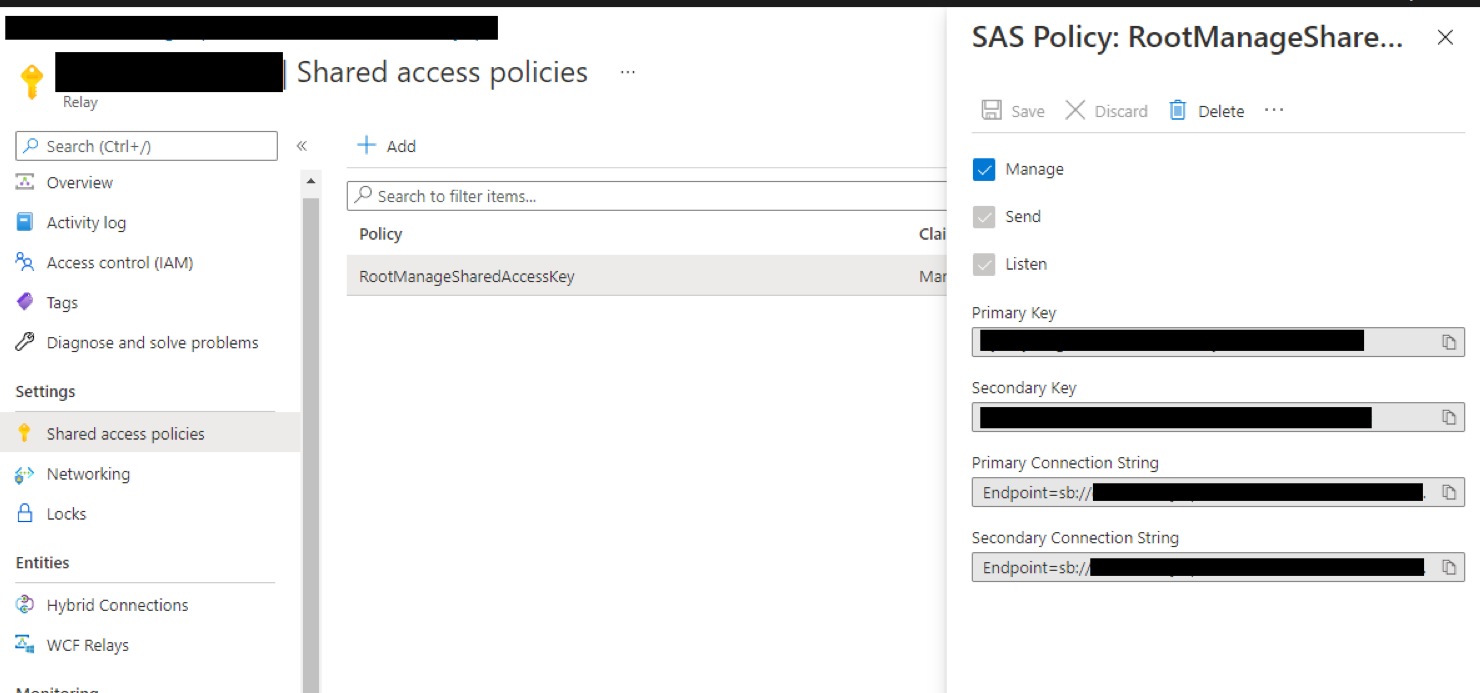
Finally, the Service Bus Namespace Address can be derived from the Name of the Azure Relay or the 'Primary Connection String'. For example, an Azure Relay defined as:
- Name: 123dynamicsrelay
- Connection String (beginning with):
Endpoint=sb://123dynamicsrelay.servicebus.windows.net...
The equivalent Service Bus Namespace Address is:
- Azure SB Namespace Address:
https://123dynamicsrelay.servicebus.windows.net/ruleexecution
Request and Response Limitations
Request Message Size
If the request message size is too large the execution service will return an Internal Server Error. You can enable WPF Tracing on the Rule Execution App Service to validate this is the issue.
Response Message Size
If the response message is too large the plugin will show this error message:
The maximum message size quota for incoming messages (xxxxxxx) has been exceeded. To increase the quota, use the MaxReceivedMessageSize property on the appropriate binding element. Please see Known Issues and Limitations in the InRule Deployment Guide
The response size limit cannot be changed, since it is not configurable in Dynamics 365, but there are a few things you can do to reduce its size. In the relevant Rule Configuration settings, under the Rule Execution Service section, you can disable the return of the entity image, rule execution log, and entity loading log.
Deployment and Setup
Solution File Invalid Error

If you are encountering the error above, it is likely because you are attempting to import the InRule solution file using Dynamics' included Import Solution tool. This is not the recommended approach for upgrading the solution components. Because there are many operations involved in an upgrade beyond the Dynamics solution (preserving step registrations and SAS keys, applying security role permission sets, etc.), all InRule solution installations and upgrades should be conducted using the approach outlined in InRule Solution for Dynamics 365.
Application Insights Location Error
Application Insights resources are not available in every region, the list of supported regions can be found in Microsoft's Product Availability. By default the ARM template will attempt to deploy the App Insights resource in the resource group specified for the template deployment. If this resource group is in one of the unsupported regions you will get the following error:

To fix this error we will have to choose a specific region for the Application Insights resource in the ARM template parameters file.
-
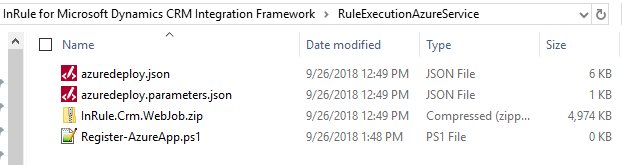
Locate InRule.Dynamics.Service.parameters.json
The ARM template parameters file is located in the RuleExecutionAzureService folder as, defined in Rule Execution App Service for Dynamics 365
-
Create an "appInsightsLocation" parameter
Open the file in your text editor of choice. First, create the "appInsightsLocation" parameter at the bottom of the parameters file. Set the value equal to a region where Application Insights resources are offered.
    "appInsightsResourceName": {
      "value": ""
    },
    "appInsightsLocation": {
      {
        "value": "SouthCentralUS"
      }
    }
} -
Save InRule.Dynamics.Service.parameters.json and continue deployment
Save and close the file. You can now proceed with the deployment process outlined in Rule Execution App Service for Dynamics 365 as normal; your rule execution app service will now deploy to the App Service Plan you defined in the steps above
-
Should you encounter the following error repeatedly being logged in your AppService's Application Log:
Unhandled Exception: System.ServiceModel.AddressAlreadyInUseException: This endpoint requires IsDynamic = False
You need to delete the Azure Relay that your Webjob is attempting to connect to and redeploy it using the ARM Template included in the InRule deployment package.
Package Deployment Timeout
When running the deployment script from InRule Solution for Dynamics 365, the Dynamics Package Deployer tool may timeout when communicating with Dynamics. This will result in a 'The request channel timed out while waiting for a reply' error. Depending on where in the process this error happens, the Package Deployer tool may retry or may stop execution. Once it completes, be sure to validate the service endpoint and custom action settings in Rules Configuration and Settings, as incomplete deployments can reset these to default values.
AppSource Deployment Errors
Errors resulting from AppSource deployments can be difficult to debug, as the UI often provides very little information. The first thing to check is if there is any info in 'Solutions History', which can be found in advanced settings under the 'Customization' section. This page lists each solution install attempts, the result, and any errors from deployment. Issues at this step can sometimes arise from dependency issues or conflicts with other components installed in the instance. If the deployment fails before the solution install is even attempted, there will not be any attempts listed, and the only error will be the generic one displayed on the app management page. If this happens, attempt to install the app at a later time, and ensure that all of the appropriate Microsoft licenses required to use Power Apps are provisioned. If this still does not resolve the issue, contacting Microsoft support may be required.
Performance
Plugin Trace Log
When troubleshooting performance issues, the plugin trace log provides detailed metrics to help analyze the various components of rule execution performance. At a high level, the plugin trace logs provide run times for the various execution steps. The 'Performance' section of the plugin trace form includes a field for 'Execution Duration', which is the total process time for the plugin request. In addition, the InRule plugin also provides a more detailed breakdown of steps in the trace text. These are broken into Plugin Setup, Execution Service, and Save.
Plugin setup time is usually short and includes config entity loading and parsing of input parameters. Execution Service time will typically be longer, as this includes communication latency over Azure Relay, loading of additional entity data, and execution of rules. Save time will not always show up in trace logs, but if any entity changes come back from rule execution the time needed to save them will be reflected here. The trace log will also include a message noting the number of entities returned from the execution service for saving. This saving should not take much time for a handful of entities but can take several seconds for large change sets.
For a further breakdown of the data loading and execution time from the rule execution service, the 'Info' level event logs for the App Service can be accessed through the Azure Portal. More information about these logs can be found below.
Included below is a sample plugin trace log.
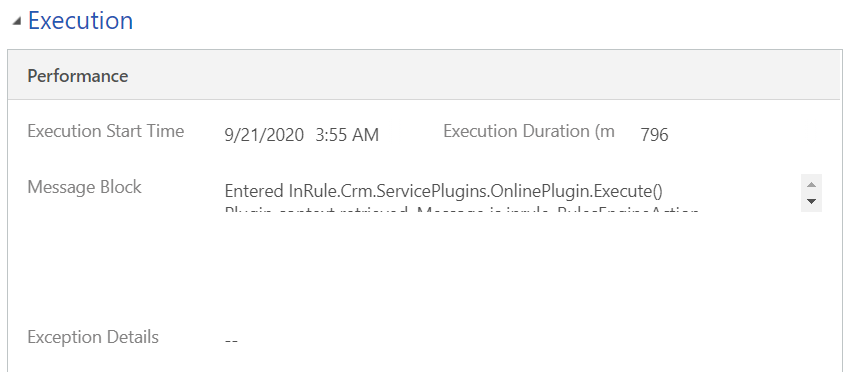
Entered InRule.Crm.ServicePlugins.OnlinePlugin.Execute()
Plugin context retrieved. Message is inrule_RulesEngineAction
Loading configuration entity with ID 42260319-bd49-e911-a973-000d3a1d5285
Configured with depth check of: 0
Plugin context depth: 1
Primary Entity name: none
Primary Entity ID: 00000000-0000-0000-0000-000000000000
Step ID: 070ad2c4-ae70-e711-811a-e0071b6a6141
Step Name: InRule Custom Action Step
Original Input parameters:
Parameter name: entityId, Value: f908cdfa-9b94-ea11-a811-000d3a8df742
Parameter name: ruleAppName, Value: AccountRuleApp
Parameter name: ruleSetName, Value: InvoiceReconciliationRules
Parameter name: entityTypeName, Value: account
Parameter name: persistChanges, Value: True
Parameter name: dirtyEntityImage, Value:
Output parameters:
Parameter name: executionResult, Value:
No entity image present in message. Locating and retrieving entity from CRM using ID f908cdfa-9b94-ea11-a811-000d3a8df742 and type account
Posting the execution context to the service endpoint d2e50ca1-ef4c-e611-80e9-6c3be5a82b30 using RuleApp 'AccountRuleApp' and RuleSet 'InvoiceReconciliationRules'.
Plugin Setup Time: 16.6833ms
Plugin Execution Service Time: 704.7022ms
Received string response from rule execution service. Response length: 2734
Response json data:
{"EntityImage":null,"EntityChangesResponse":{"EntityChanges":[{"Id":"0a38ba18-9c94-ea11-a811-000d3a8df742","ChangeType":0,"Entity":null,"EntityImageContainer":{"Attributes":[{"Name":"totaldaysnonbillable","Value":2.5625}],"EntityName":"account","Id":"0a38ba18-9c94-ea11-a811-000d3a8df742"},"RelationshipContainer":null}]},"NotificationResponse":{"Notifications":[{"Type":0,"Message":"Days Booked: 0"},{"Type":0,"Message":"Days Used: 0"},{"Type":0,"Message":"Days Remaining: 0.0000"},{"Type":0,"Message":"Days Invoiced_Paid: 0"},{"Type":0,"Message":"Days Invoiced_Open: 0"},{"Type":0,"Message":"Days Invoiced_Total: 0"},{"Type":0,"Message":"Amount Invoiced Total: 0"},{"Type":0,"Message":"Training Booked: 1.5"},{"Type":0,"Message":"Training Used: 1.5"},{"Type":0,"Message":"Total Days Booked: 1.5"},{"Type":0,"Message":"Total Days Used: 1.5"},{"Type":0,"Message":"Total Days Comp: 1.5"},{"Type":0,"Message":"Total Days Non-Billable: 2.5625"},{"Type":0,"Message":"Services Non-Billable: 0.0313"},{"Type":0,"Message":"Training Non-Billable: 0.5938"}]},"ValidationResponse":{"Validations":[]},"ContextResponse":{"PropertyBag":[]},"ErrorResponse":{"Errors":[]},"RuleExecutionLog":null}
SAVE: Saving 1 changes to CRM
Processing change -- Update on entity ID 0a38ba18-9c94-ea11-a811-000d3a8df742 -- type account
Synchronizing change images:
Completed sync changes image
Save Time: 74.1592ms
Output parameter "executionResult" populated with execution service response
Exiting InRule.Crm.ServicePlugins.OnlinePlugin.Execute()
Plugin Persistence Performance
When changes are made to entities as part of rule execution, these changes are bundled up and sent from the execution service back to the plugin for saving. Performance testing in this area indicates you can expect to be able to save around 10 changes a second, although other things can increase this time, such as other plugins registered to the entity being updated, and initial plugin start-up times. This performance constraint is specific to Dynamics overall (as compared to InRule) and has been verified with direct testing using XRM with simple entities.
Execution Service Performance
Enabling Info level logging on the Execution Service can provide more detailed performance data. The plugin trace log will include some summary data about the entire rule execution run, but the execution service can log specifics about entity data loading and rule execution from the service. To enable the info level logging, set the "inrule:logging:level" app setting to "Info". For all installations this can be done by editing the web.config, but Azure-hosted services can also edit this setting via the Azure portal.
Setting this to "Info" will enable two sets of logs, the standard InRule SDK logs that appear for all InRule products, and the data loading logs that measure entity loading specific to the Dynamics integration. You can find all the details about the Event Logs on the InRule support site here. There are a variety of different events, but the 'ExecuteRuleSet' entry will contain some of the most important measurements, such as compile, execution, and external call times.
However, these measurements only capture actual rule execution, and before rule execution happens the entity tree is loaded from Dynamics. The data loading log captures this information. When executing rules from Dynamics, only the root entity is sent from the plugin to the execution service, and the execution service will then use the rule app metadata to determine which relationships and entities need to be loaded. The execution service batches these requests for greater efficiency, but very large entity trees or network latency can still lead to long load times. The entity loading log breaks down the total loading time into each 'batch' of loading requests made, and lists the total load time and all entities loaded in the batch. This information can be used to identify where large numbers of entities are being loaded and how long particular batches take to retrieve from Dynamics.
Taken together, these logs can be used with the plugin trace log to get an end-to-end picture of performance, and help identify which steps consume the most time. An extract of a sample of the data loading log is shown below.
Entity Loading:
Total Loading Time: 911.5114ms
Total Org Service Time: 701ms
Root Entity: inr_projectprofile

Related Entities: inr_projectprofile -> account lookup <inr_account_inr_projectprofile> (1), inr_projectprofile -> inr_agreement lookup <inr_inr_agreement_inr_projectprofile_PrimaryAgreement> (1), inr_projectprofile -> inr_projectprofilegroup lookup <inr_inr_projectprofilegroup_inr_profile> (1), inr_projectprofile -> inr_agreement collection <inr_inr_projectprofile_inr_agreement> (2), inr_projectprofile -> annotation collection <inr_projectprofile_Annotations> (33), inr_projectprofile -> inr_businessapplicationtype collection <inr_inr_businessapplicationtype_inr_projectpr> (1), inr_projectprofile -> inr_integrationdetail collection <inr_inr_integrationdetail_inr_projectprofile> (5), inr_projectprofile -> inr_runtimeapplicationtype collection <inr_inr_runtimeapplicationtype_inr_projectpro> (4), Time: 180.1637ms
Related Entities: account -> incident collection <incident_customer_accounts> (43), inr_agreement -> serviceappointment collection <inr_agreement_ServiceAppointments> (69), Time: 128.366ms
Related Entities: incident -> subject lookup <subject_incidents> (8), serviceappointment -> service lookup <service_service_appointments> (5), Time: 109.0635ms
In addition to always being logged on the execution service when Info logging is enabled, this log can also be returned in the response and logged to the plugin trace log for easier access. This can be enabled by following the steps in Displaying Additional Logs and Response Data in Trace Logs.
Regional Performance
To maximize performance by reducing network traversal time, ensure that your Dynamics 365 instance and Azure resources (App Service, Azure Relay, etc.) are deployed to the same Azure Region.
To determine what region your Azure resources are deployed to, navigate to that resource's overview page in the Azure portal and reference the "Location" property at the top of the page:

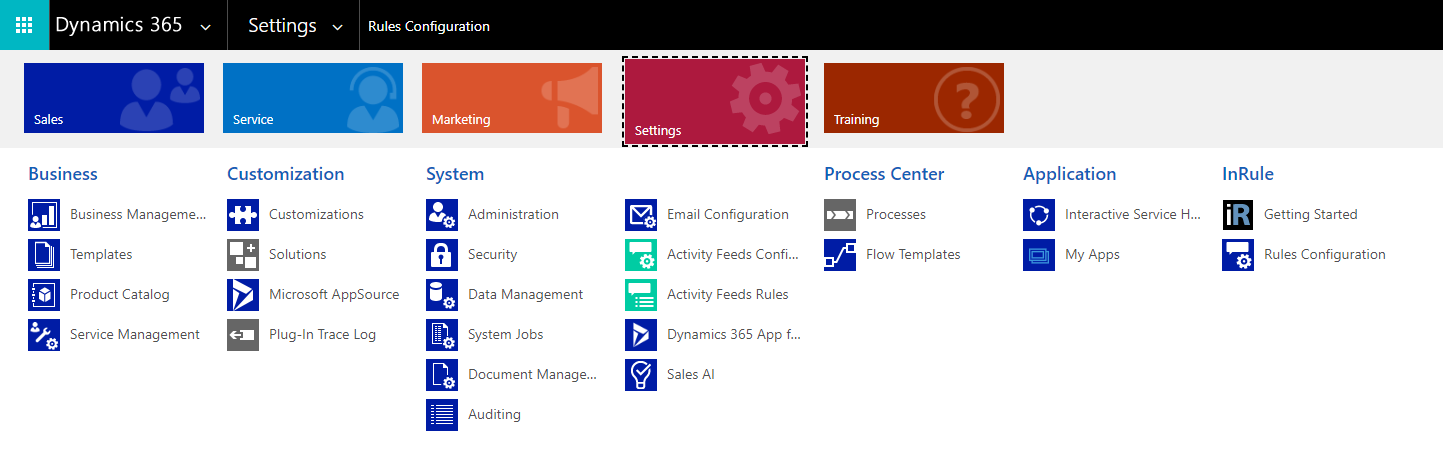
Determining your Dynamics 365 region is unfortunately less straightforward. First, log in to your Dynamics instance and select Settings:
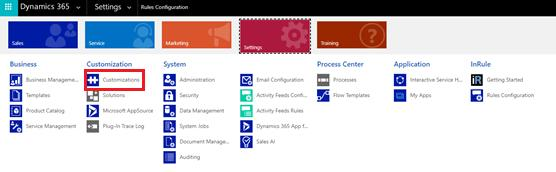
Under the Customization header, select Customizations
Select Developer Resources
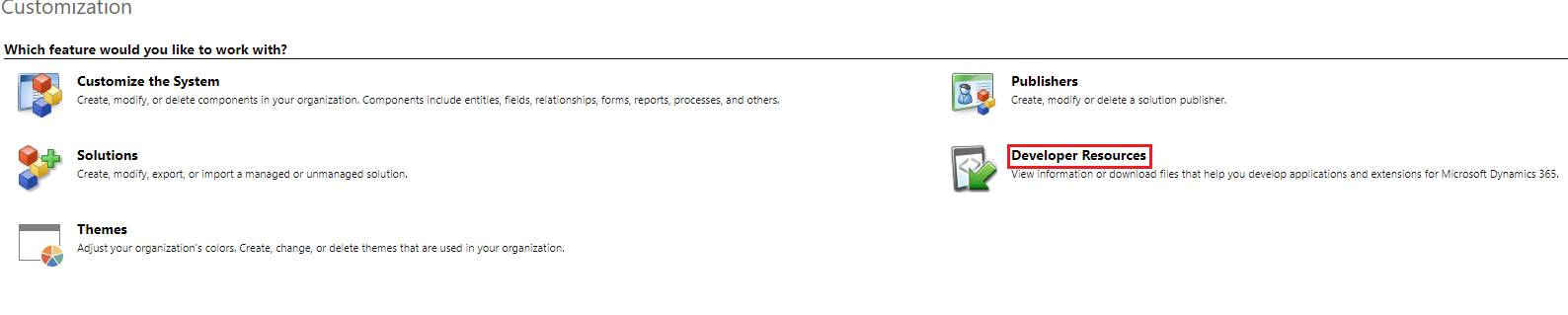
Look for the endpoint address in the Discovery Service section:
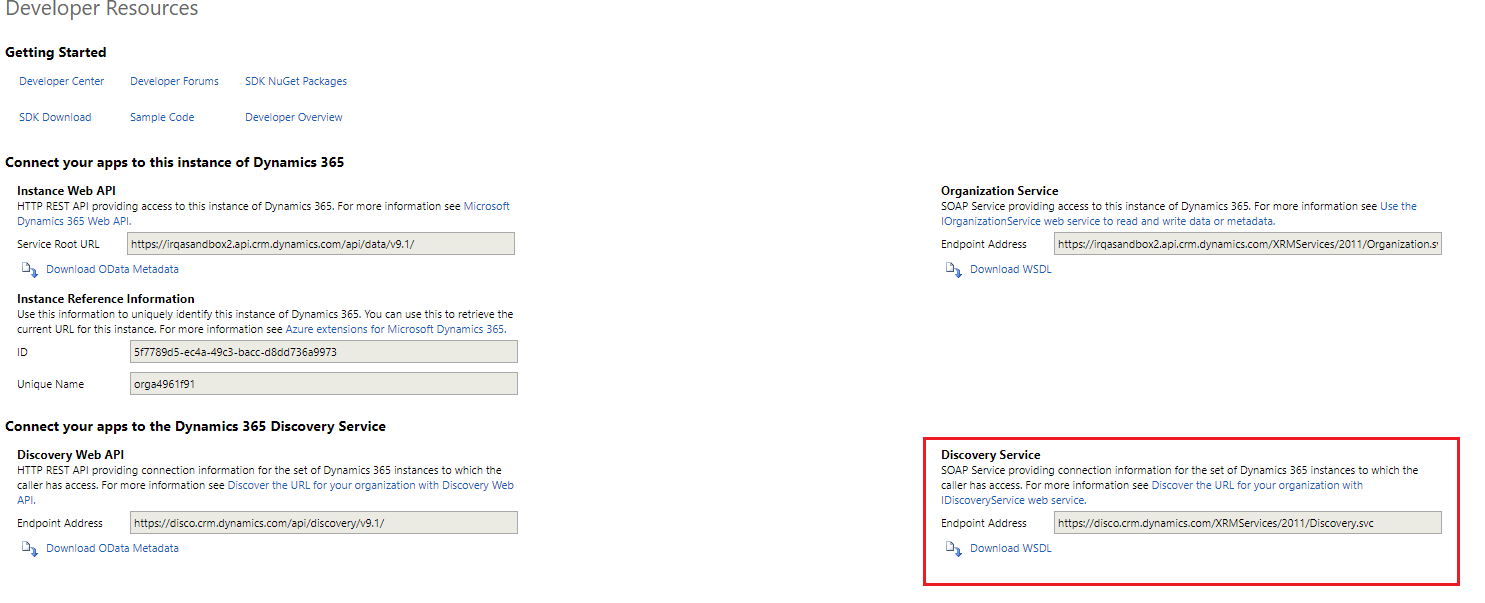
This endpoint address can be compared against the endpoints in this Microsoft document. They each map to a major Azure region. While Dynamics does not provide a means of determining your sub-region (such as US-East or US-West), this will allow you to at least know which major region your Dynamics instance is located in.
Since you cannot change or configure your Dynamics region in any way, it is recommended instead that you move your Azure resources to a sub-region that falls within the same major region that your Dynamics instance is in.
Decreasing Message Size
Large message sizes when communicating over the Azure Relay to the execution service can result in lower performance and potentially failed requests if the size is too large. When testing performance, it is recommended to turn off 'Entity Loading Log Enabled', 'Rule Execution Log Enabled', and 'Return Full Entity Image' in the 'Rule Execution Service' section of the InRule config entity, as these settings can contribute significantly to the size of the message returned from the execution service.
Batch Processing
InRule rule execution is primarily oriented at the level of an individual transaction for a given entity context. This is relatively straight-forward when rules are based on an entity event or on-demand process - for example, Validate Account or Qualify Lead. In other scenarios, there may be a desire to execute rules across multiple entities that are related to a logical parent at a point in time - for example a tranche of Loans or Leads from a Tradeshow. In this case, InRule's collection handling is well suited to load and execute rules against multiple entities based on the relationship to the parent rule entity. The multiple entity scenario works well up to a point. The primary consideration is that all of the entity data is processed in a single rules execution request that can result in the loading and saving of hundreds to thousands of entities.
If the entity count for a rule execution request is expected to be upwards of 1,000 to 10,000+ entities and these entities represent individual transactions, it's advisable to reassess, measure throughput, and potentially consider batch approaches. At this time, neither Dynamics nor InRule have a one-size-fits-all solution for managing high-volume batch operations. However, in these scenarios, parallel rule execution for a large number of transactions can be achieved by employing common batch solution techniques and tools. The end goal is to establish a solution where a batch process will manage the iteration across the primary entities (e.g., Leads for a Tradeshow) and issue execution requests to the InRule Rules Engine Action for either individual Leads or smaller groups of Leads.
Enable Background Compilation
This setting controls whether the download, compilation, and caching of updates to rule applications from the catalog is handled on a background task. When enabled, rule execution will not be blocked while updating the rule app and will instead run immediately against the currently cached version. Self-hosted tenants should ensure this value is set to true for their deployment to avoid unnecessary catalog overhead. For additional information, please view the documentation available on the Configuration Overview page.
Disabling State Refresh
Disabling the state refresh option could improve performance for applications with many RuleHelper calls. State refresh is configured for both .Net Assembly Function Libraries, and User-Defined Functions.
.Net Function Assembly Libraries
To disable state refresh for .Net Assembly Function Libraries, begin by navigating to the Endpoints tab in irAuthor. Once there, select the function library containing the function you wish to disable state refresh for.
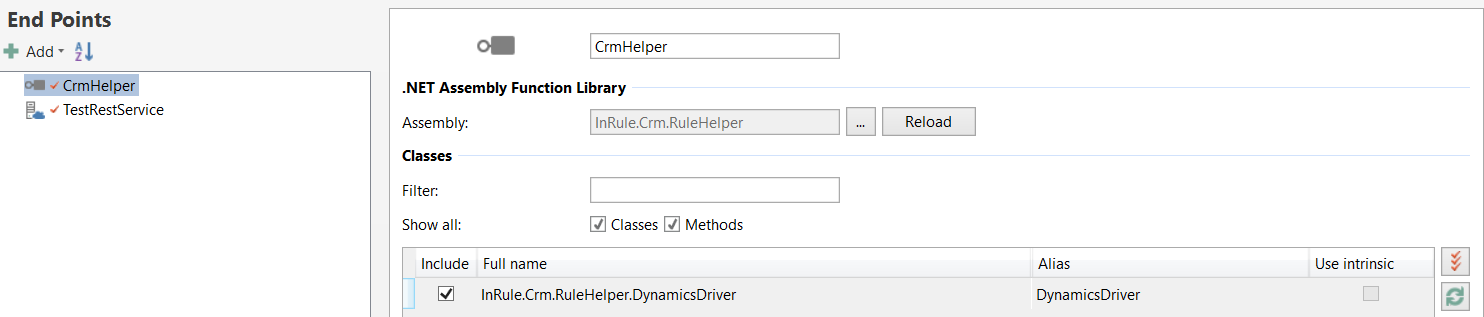
Select the function being updated from the list and then click the refresh icon on the right.
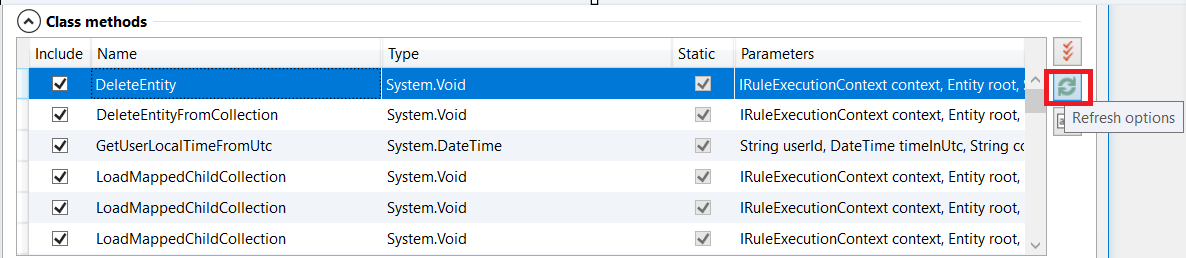
A Refresh Options pop-up should appear. Locate the "Refresh all bound objects" checkbox and uncheck it. Click OK.

State refresh should now be disabled for this function.
User-Defined Functions
To disable state refresh for User-Defined Functions, begin by navigating to the User-Defined Functions tab of your app in irAuthor. Once there, select the function you wish to disable state refresh for and click the "Modify state refresh options" link under the State Refresh Options section.
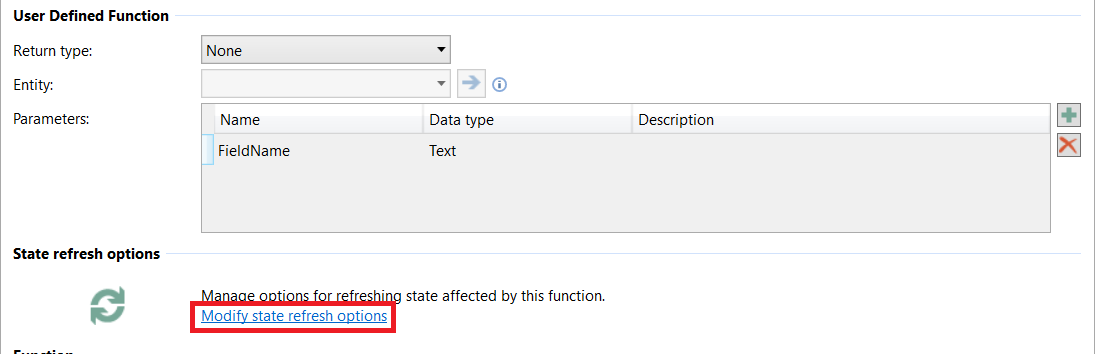
A State Refresh Options pop-up should appear. Deactivate the "Enable full refresh of all bound objects" checkbox and click Ok.

State refresh should now be disabled for this function.
Miscellaneous Troubleshooting Items
- Relay Provider Error - When deploying the Azure WCF Relay (aka Azure Relay), you will need to ensure the Azure subscription you are deploying the Relay into has the Relay provider enabled. This can sometimes happen with older subscriptions that have not used relays before. For more information about this issue, refer to the link here
- Plugin Isolation for On-Prem - When deploying plugins without isolation in an on-prem environment, Dynamics requires that the user registering the plugin must be added as a Deployment Administrator from Deployment Manager. If the registering user lacks the proper permissions, when deploying the package Dynamics will return an error stating "Assembly must be registered in isolation."