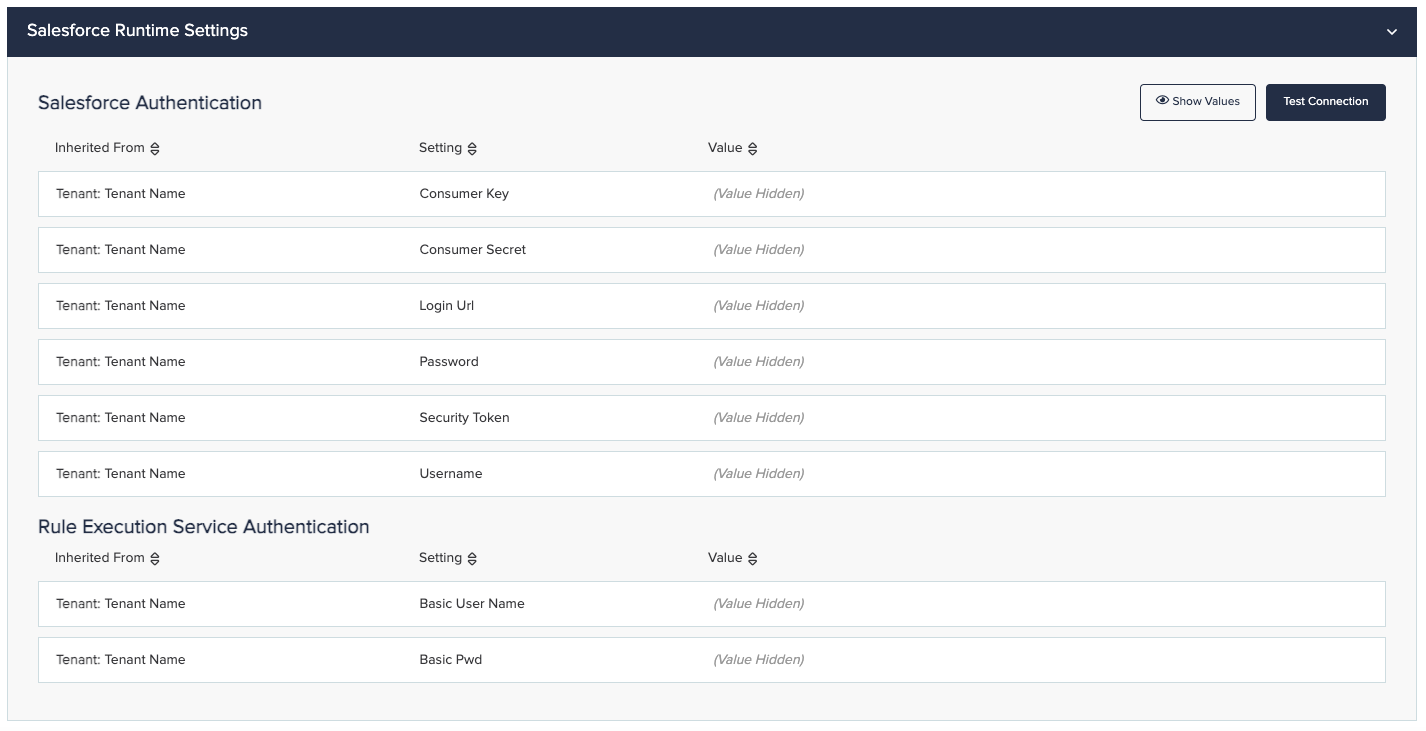
Configuration Overview
The configuration page is where you manage the settings for all your InRule environments. Here you can view and update configuration values, manage connections, adjust runtime behavior, and configure integrations like Microsoft Dynamics 365 and Salesforce. This helps administrators keep environments consistent and make sure InRule runs with the intended settings.
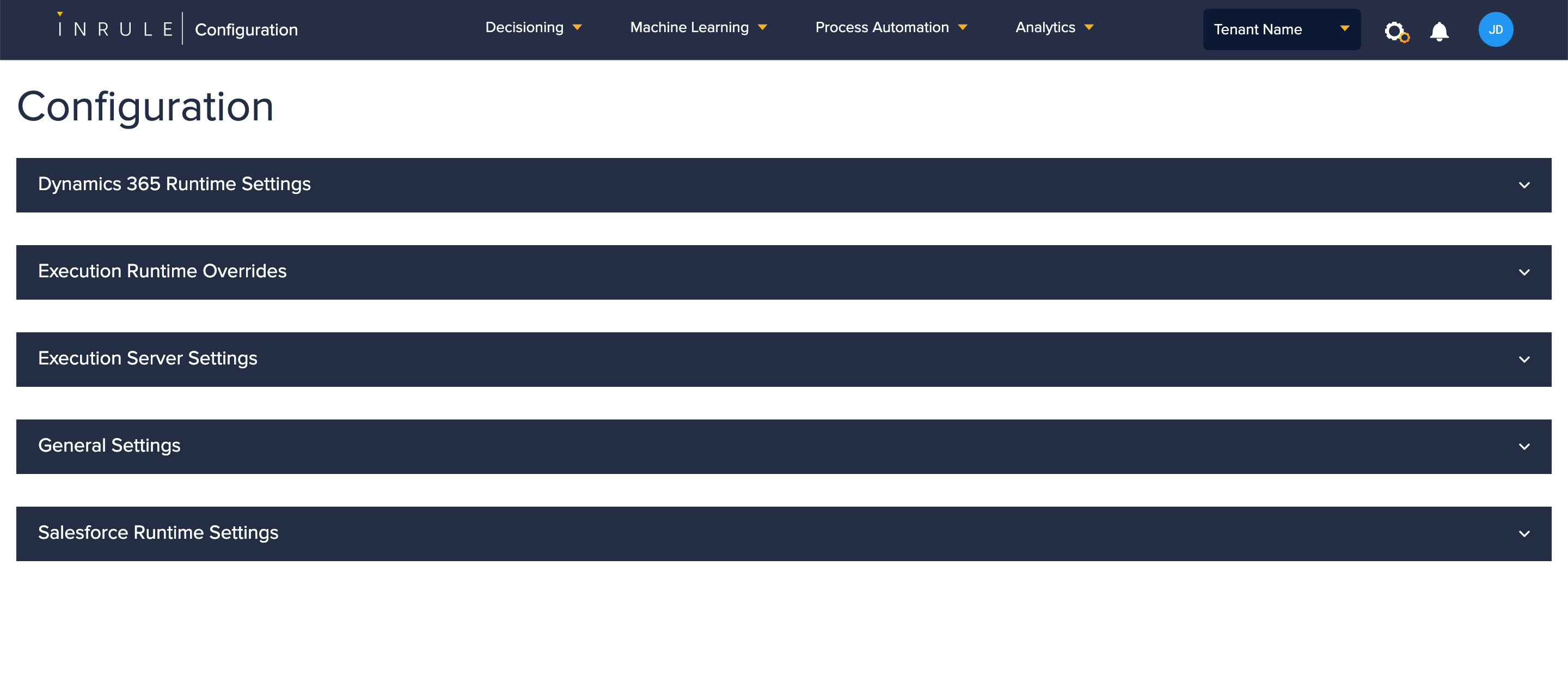
Using the Configuration page
With the exception of Runtime Overrides, the content of the sections is editable, but you are unable to create new configurations on the page.
Edit
Hover over the configuration you would like to edit and the below options will appear. Click on the edit configuration icon to edit the configuration.

Copy
You can click on the copy icon wherever you see it to copy the information next to it.

Toggle
Some configurations have a toggle so you can enable or disable them. You must click on the Edit button  in order to be able to move the toggle.

Show / Hide Values
-
Clicking on the Show Values button shows the values of the configuration in that section.

-
Clicking on the Hide Values button hides the values of the configuration in that section.

-
Clicking on the Toggle Visibility icon will show or hide the values in that row.
Show

Hide

Save / Cancel
Once you have opened a configuration for editing, you have the option to Save or Cancel the edits.

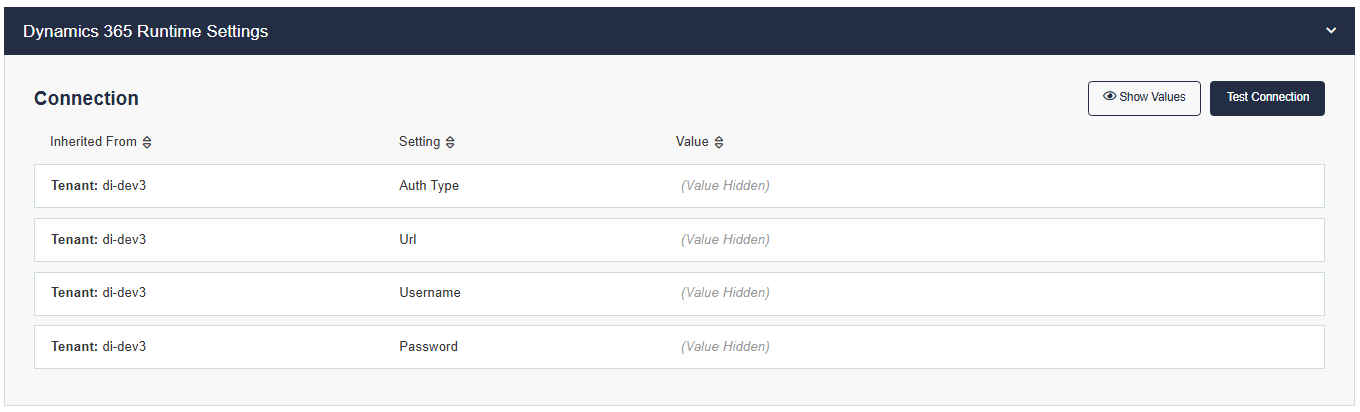
Dynamics 365 Runtime Settings
In this section, you can access and update the Dynamics authentication settings used to connect to your organization's Dynamics instance. The current authentication types supported are OAuth and S2S. Most production scenarios implement S2S as the OAuth option is limited to a service account with MFA turned off. To read more, see the Dynamics documentation here, InRule for Microsoft Dynamics 365 Deployment Guide.
Execution Runtime Overrides
Here you can add, delete, and edit the configuration of a Runtime Override. See more documentation here in the Execution Runtime Overrides section.

Execution Server Settings
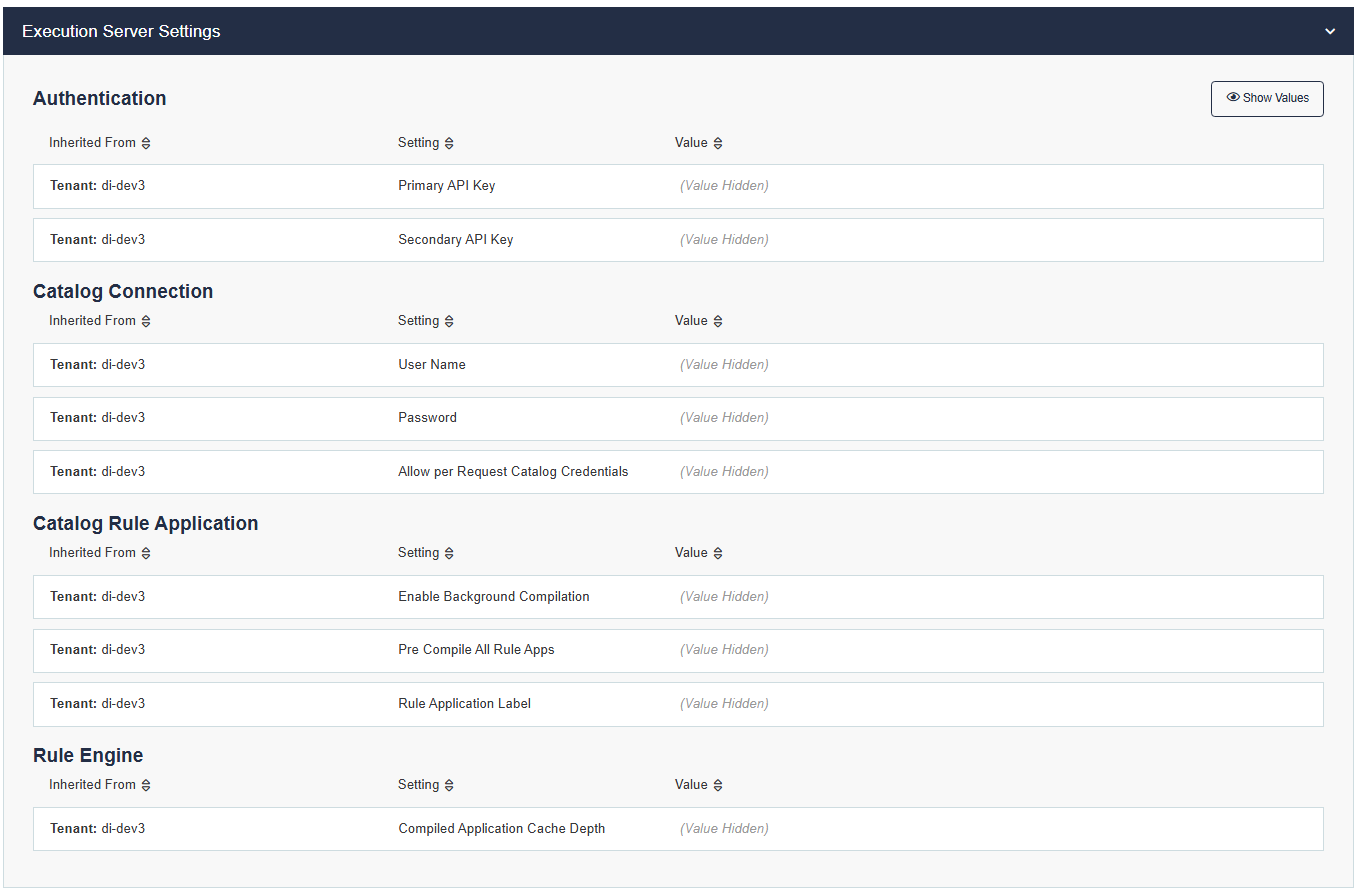
Authentication
Support for Primary and Secondary API keys is now available to enable self-managed key rotation. Each setting provides a refresh icon on the far right to regenerate a new API key.
Catalog Connection
An optimal way to provide these credentials is by entering them here, on the Configuration page.
-
User Name and Password
The User Name and Password are created in the Web Catalog Manager when adding or editing a user. Once credentials are set, it is added here to expose it to the Rule Execution Service. It is essential that the information here matches the information in the catalog. -
Allow Per Request Catalog Credentials
Turning on the toggle will allow the catalog credentials to be passed to the Execution Service through a REST request. By default, the Allow Per Request Catalog Credentials toggle is turned OFF. It is recommended to keep this toggle OFF for security reasons.
Catalog Rule Application
-
Enable Background Compilation
When set to True the catalog polling operation to check for a new rule application version will be performed on a background non-blocking thread. If a new version of the rule application exists, the download, compilation, and caching of the new version will be performed on the background thread. Any concurrent requests will use the cached compiled rule application until the new compiled version is ready. The default is true and recommended for optimal server performance. -
Pre-compile All Rule Apps
When set to True, Decision Services will perform an automatic compilation of all rule applications contained within the Catalog upon startup. The purpose of this is to allow new scaled-out instances of the Execution Service to have gone through a functional "cold start" process prior to requests being routed to it. This prevents initial requests going to a new instance of the execution service from taking a longer duration due to the rule application compilation process. This setting does not apply to the legacy Rule Execution Service, Dynamics, or Salesforce execution services. -
Rule Application Label
When this configuration setting has a non-empty value, Rule Executions will be performed using the specific Revision of the requested Rule Application to which this setting's label has been applied within the Catalog instance. This value must match the Label in the Catalog, and that Label must be applied to a revision of the requested Rule Application for the execution to be successfully completed.
Rule Engine
- Compiled Application Cache Depth
The first time a Rule Application is requested, it must be compiled so the rules engine can execute the rules. Once a Rule Application is compiled, it is stored in an AppDomain cache for subsequent executions of the application. If this number is exceeded, the oldest compiled rule application is removed from the cache in favor of the newest compiled application. The default is 25.
General Settings
Logging
Detailed application event information from InRule can be logged to the Windows Application Event Log by configuring the log settings. At this point, only the level of logging can be modified in the configuration application. Adding this setting will override all level settings for loggers.
Group-level settings can be one of the following: Debug, Info, Warn, Error, Fatal.
Salesforce Runtime Settings
Salesforce settings are updated in this section. You can access the Salesforce documentation here, InRule for Salesforce Deployment Guide.