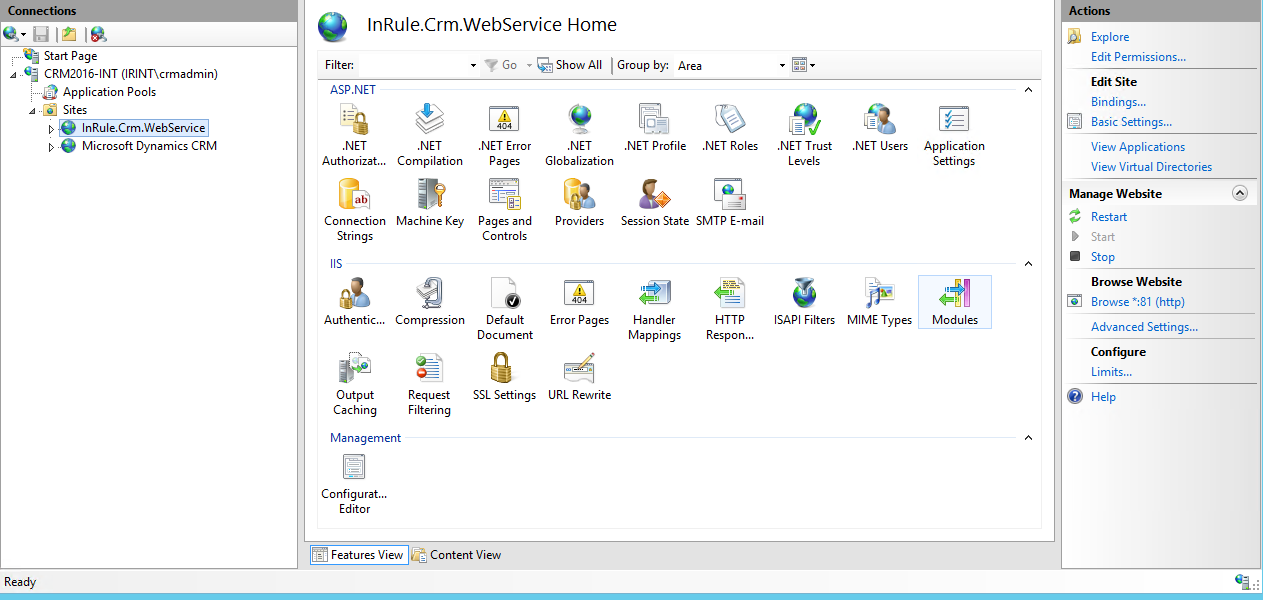
Setting Up the IIS Site for the Dynamics 365 Rule Execution Web Service
Next, we'll need to setup a website in IIS to host the execution web service. This will require a Windows Server with IIS installed.
1: Open IIS Manager
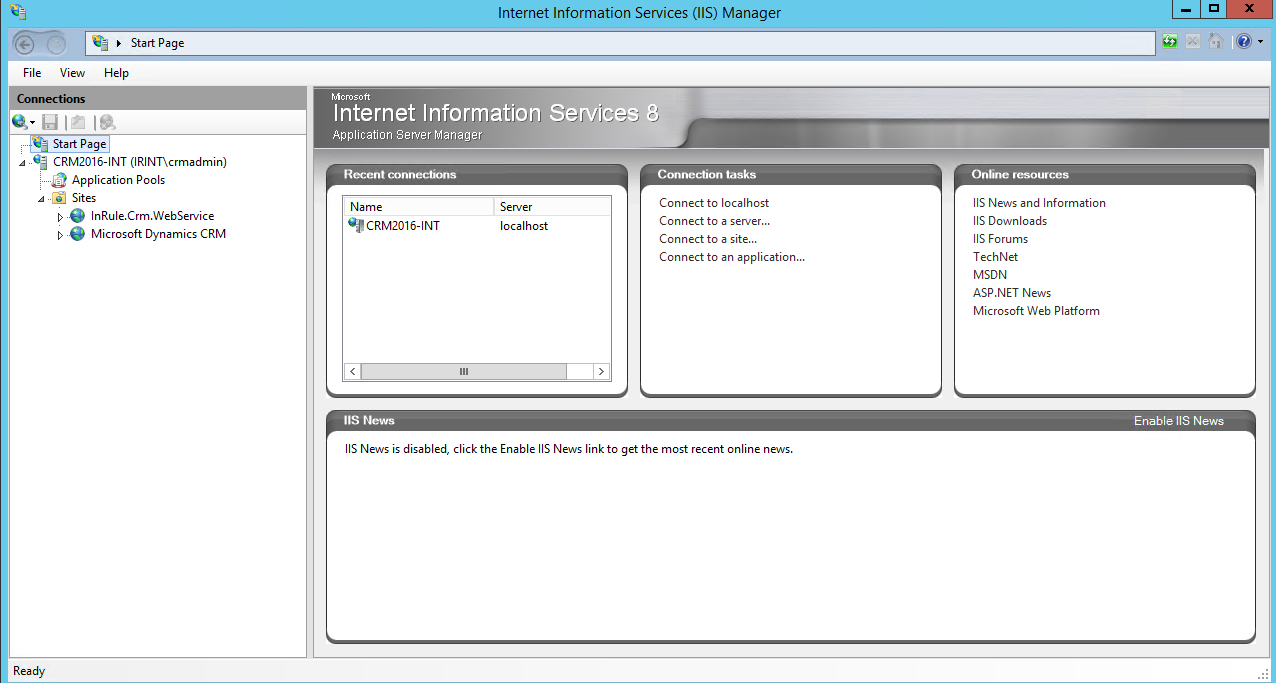
2: Click on Sites on the Left-Hand Nav Pane
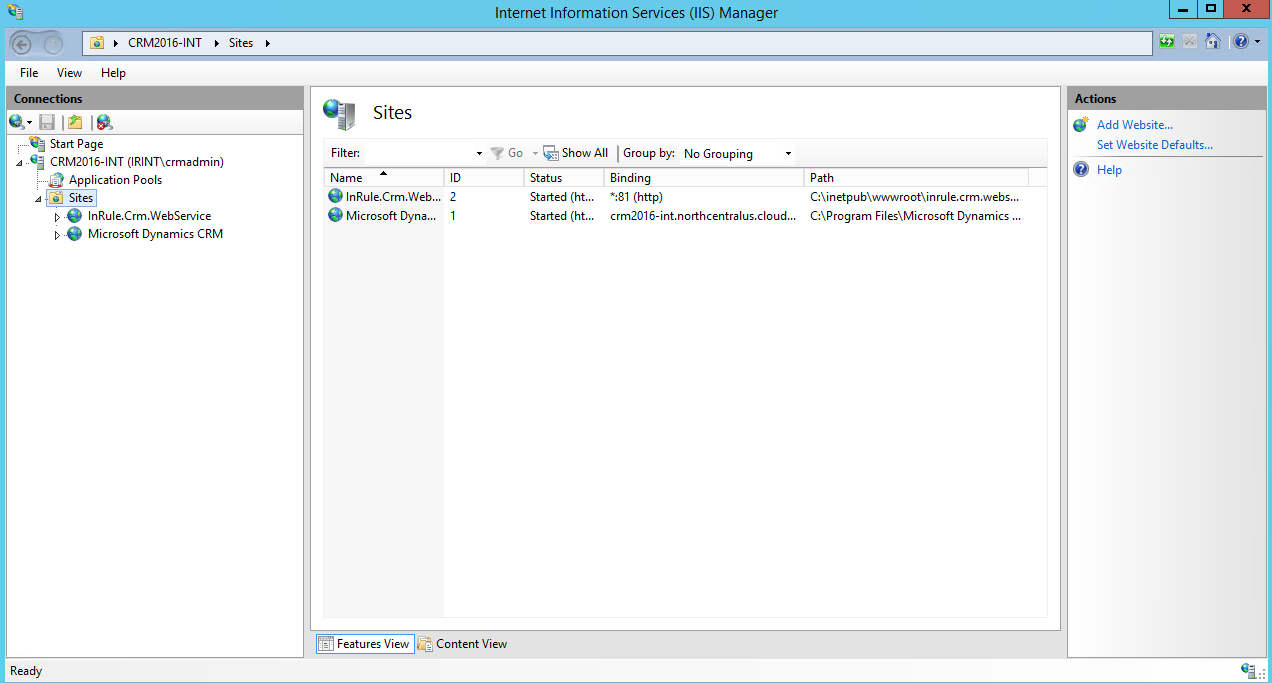
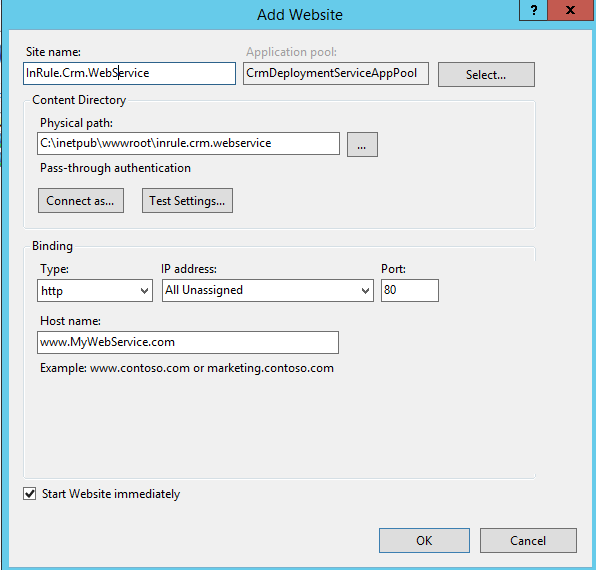
3: Click "Add Website" Under "Actions" in the Right-Hand Pane
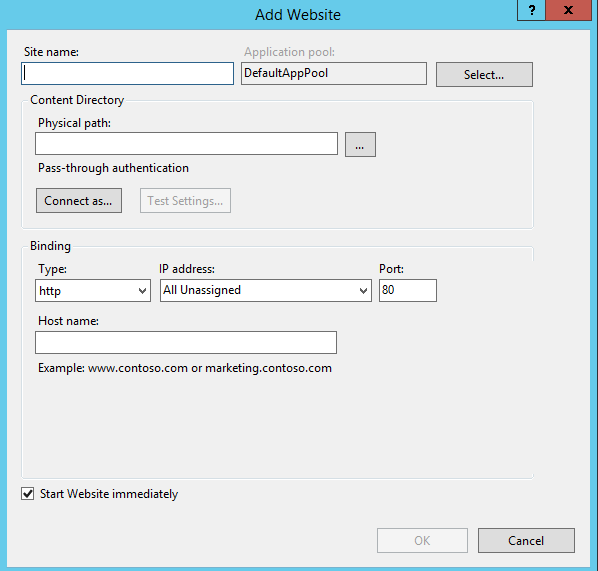
4: Define Website Information
Define a site name, application pool, and host name for the website; these can be configured however makes sense within your organization.
The physical path needs to be set to the actual Dynamics Rule Execution web service folder. This will require you having the InRule components downloaded onto the same server you are setting up the website on
Lastly, select either HTTP or HTTPS, depending on which makes sense for your architecture. If you opt to use HTTPS, you will be required to select a certificate before you can finalize the site.
Once you've populated all the required fields, press OK to finalize and start the website
5: Verify Your Website Successfully Created