Dynamics 365 Catalog App Service
This section is only required for those following the ARM Template Deployment Path.
Installing the Catalog App Service
The first step in the InRule for Dynamics 365 deployment is deploying the InRule Catalog service to Microsoft Azure.
During this process, you will be creating:
- An Azure SQL Server
- An Azure SQL Server Database
- An Azure App Service to host the InRule Catalog in the Azure cloud
When you are finished, you should be able to connect to this app service from a locally installed version of irAuthor, and successfully save a Rule App to the catalog.
The full process of installing the Catalog in Microsoft Azure is outlined in the documentation found on the InRule AzureAppServices GitHub, which can be found here:
https://github.com/InRule/AzureAppServices/blob/master/README.md#ircatalog-and-ircatalog-manager
Uploading the License File
Once you've finished deploying the Catalog Service, you'll need to upload a license file to it in order for the catalog service to function. The simplest way to upload the license file is via the Azure App Service Editor. Alternatively, you can deploy the license file via FTP. A walkthrough of how to upload the license file by either of these methods can be found in License Management.
Testing the Catalog App Service by Uploading the Sample Rule App
At the conclusion of the installation process outlined above you should have a Catalog URI, Username, and Password to use to connect to the catalog service.
To begin, if you have not already done so, download the ruleapp DynamicsRules.ruleappx. Then utilize irAuthor to upload the rule app to your InRule Catalog. If using InRule SaaS or deploying from the Azure Marketplace, you may already have the sample rule app in your catalog.
-
Navigate to the file in your file explorer and double click on it, this will open the file with irAuthor.

-
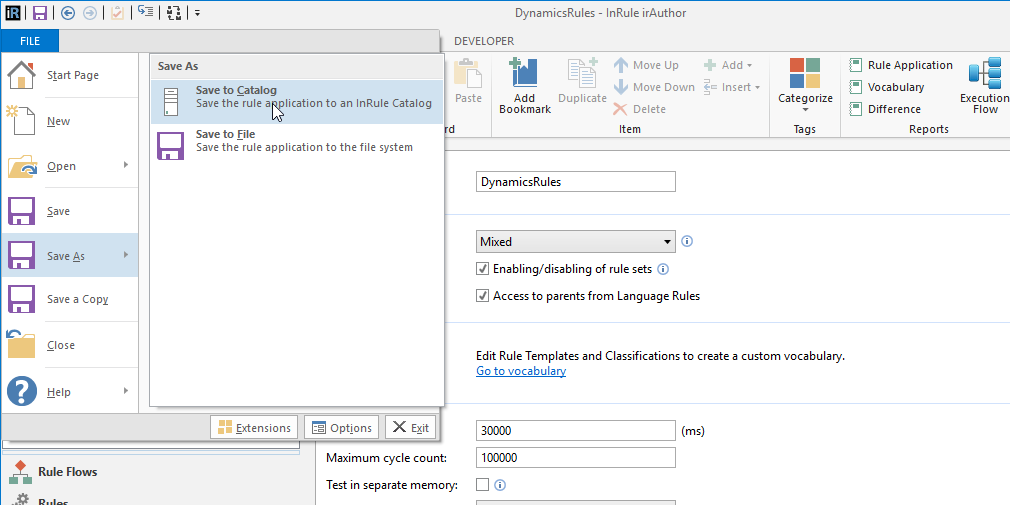
Save the Rule Application by choosing File → Save As → Save to Catalog.
-
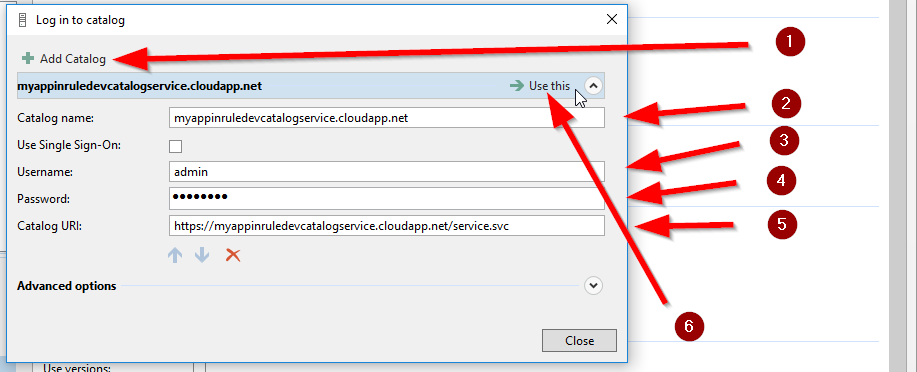
Choose Add Catalog, enter connection information for the Catalog Server that you deployed, and then select Use This.
-
Save with the name
DynamicsRules.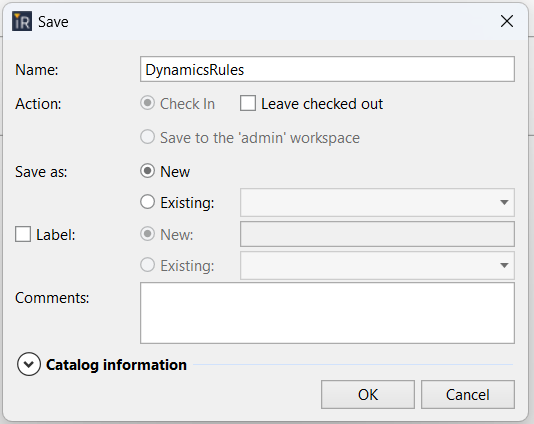
Save the Rule Application to the Catalog using the name of DynamicsRules.
At this point, if you can click OK without an error, we have successfully saved the DynamicsRules Rule App to the new Catalog that you have created.
If you have any trouble getting to this point, it is advised that you resolve any issues with the Catalog before attempting to continue.