Executing Dynamics 365 Rules with the Run Rules Button
The Run Rules button makes it easy for the end user to choose when to execute rules. Executing rules via the Run Rules button allows for the display of Informational, Warning, and Error notification types, which provide rich feedback to end users. Multiple rule sets can also be configured for interactive selection giving users the option of choosing which rules to run for a given record or dataset. The InRule Solution places this button on the ribbon of each Dynamics 365 or model-driven app Entity Form, as shown here:
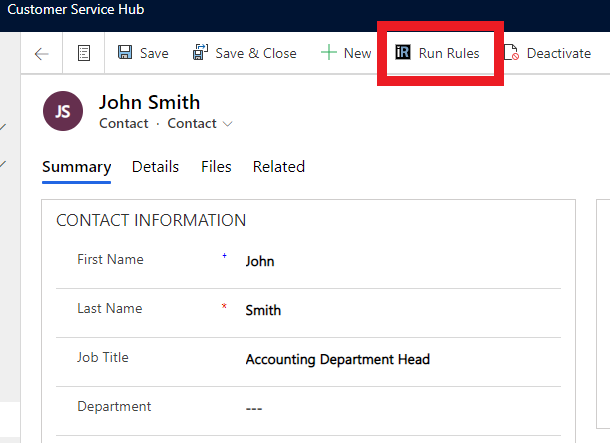
When the Run Rules button is pressed, the included JavaScript will execute rules against the current entity based on the settings defined in the InRule Solution – Rules Configuration Form, described in Rules Configuration and Settings. Once you have set up the basic InRule configuration and validated all functionality, you can hide this button from all forms where it is not used to prevent confusion for end users. To do this, follow the steps in Disabling the InRule Run Rules Button to hide the button in the default configuration, and then create new configurations to show the button only on the entities that have associated rules.
Using the Rule Set Drop-Down
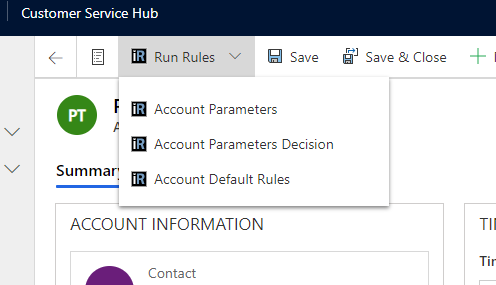
Out-of-the-box, the Run Rules button is scoped to only run the default rule set that is specified in the configuration file. However, you also have the option to add additional rule set configurations for selection by the end user. When these are added, the Run Rules Button will display a drop-down menu to allow the end user to select the rule set or decision. To enable this functionality, follow the steps in Configuring the Run Rules Button for an Entity Form
Running Rules with Parameters
If you need to collect information from end users that is not on an entity form, you can configure rule set parameters to get this information at runtime. When parameters are configured for a selected rule set or decision, the end user will see the following dialog to allow them to input the parameters:
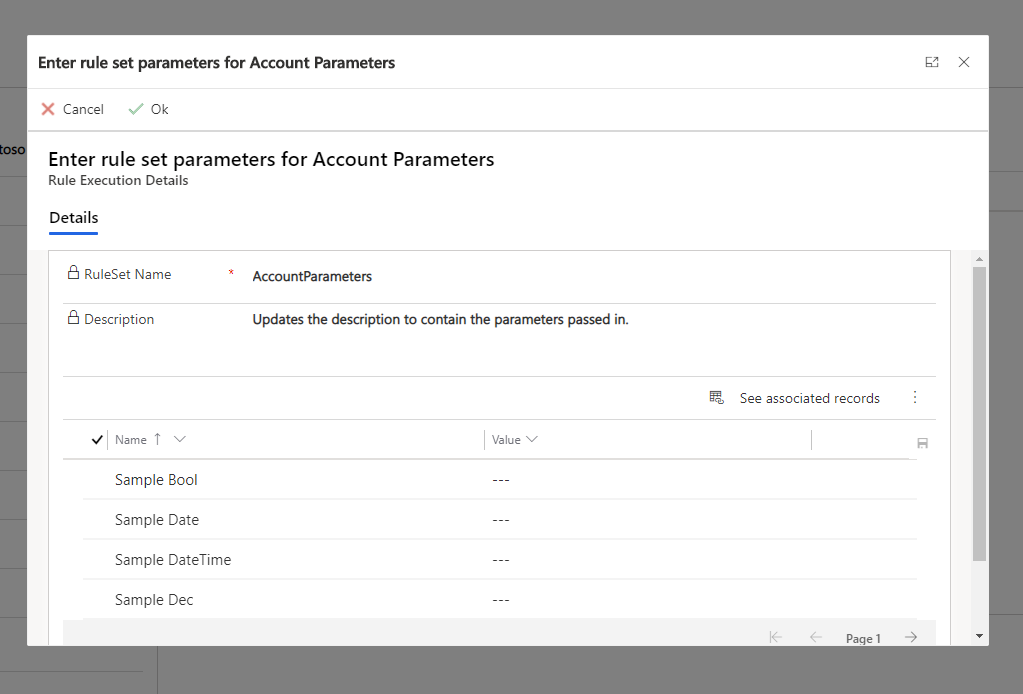
Users can optionally provide values for each parameter by setting the 'Value' field using the editable grid. Once they have filled out the parameters, they can click the Ok command button, and rule execution will continue as usual. If the user clicks the Cancel button or closes out of the dialog for any reason, rule execution will also be canceled. This functionality is primarily intended for use with the Run Rules button, but these parameters can also be passed in directly to the Rules Engine Action, which can be called from flows, JavaScript, or other external callers.
Using the Run Rules Button from Entity View
The Run Rules button can also be used from an entity view page. This allows for running rules against multiple entities at once. To do so, simply navigate to the entity view for the entity type you wish to run rules against and select the entities against which you want to run rules.
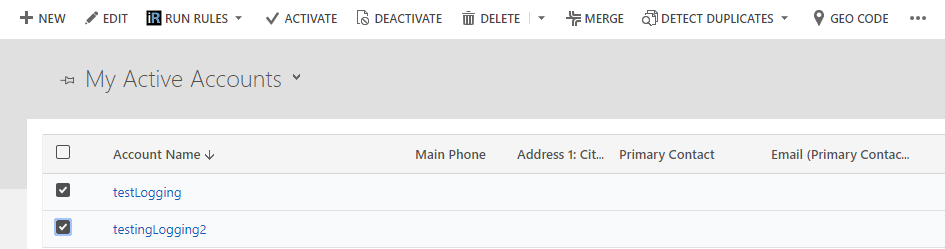
Once at least one entity is selected, a Run Rules button will appear in the Ribbon. This Run Rules button functions identically to the Run Rules button on an entity page and provides a similar drop-down menu for multiple rule sets or decisions associated with an individual rule configuration.
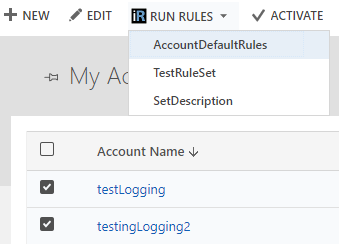
Running rules in this manner will use the rule configuration associated to the entity type that you are running against.
A key limitation to be aware of while running rules via this approach is that entity view pages are unable to display any sort of banner notifications or rule execution status. Should you want to view any notifications associated with a rule execution from a view page, refer to the plugin trace log.
Additionally, the entity view page run rules button will only execute rules against entities loaded on the current page, up to a maximum of 100 entities.