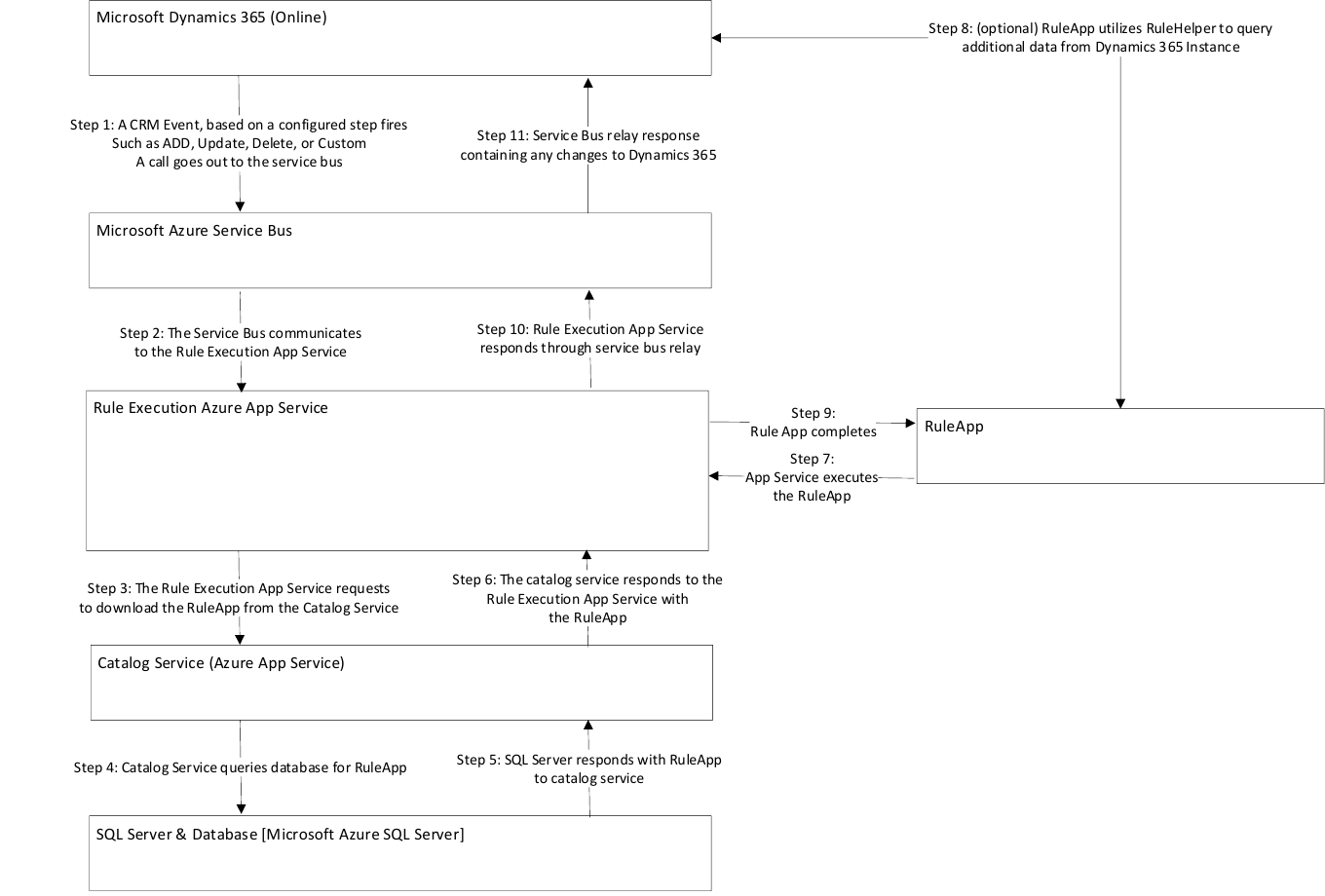
Anatomy of a Dynamics 365 Rule Execution Request
The below diagram helps to give a top-level understanding of how InRule is integrated with Microsoft Dynamics 365 (Online). Please note this diagram is a simplification that does not cover topics like caching, iterations, and multiple environments. It serves to show how the request moves through different Azure resources. The steps are also described in the context of the older integration architecture using the Azure Relay, the same principles still generally apply to the new REST Execution API sans the Relay.
- A Dynamics 365 Event based on a configured step fires, such as ADD, UPDATE, DELETE, or CUSTOM. This generates a call to the Relay, which is setup to relay requests to the connected Rule Execution App Service.
- The Relay receives the request and relays it to the Rule Execution App Service, which has attached itself to the Relay as a relay listener. For On-Premises, the rule execution service interacts directly with Dynamics.
- The Rule Execution App Service makes a request to the Catalog Service, asking for a copy of the requested Rule App.
- The Catalog Service Queries its SQL Server based database for a copy of the requested Rule App.
- The SQL Server responds with the Rule App.
- The catalog service responds to the Rule Execution App Service with the Rule App.
- The Rule App executes inside the Rule Execution App Service.
- Optionally, the Rule App has an opportunity to query Dynamics 365 for additional data needed to execute rules.
- The Rule App completed execution
- The Rule Execution App Service responds through the Azure Relay
- The Azure Relay relays the response to Dynamics 365, where the receiving plugin synchronizes changes.