Executing Dynamics 365 Rules from Dataverse Events
The InRule Solution contains a plugin that can act as a handler for events fired by Dataverse. By registering new steps to Create or Update events against Dataverse Entities, rules execute against the entities that are associated with an event as it occurs.
Configuring Plugin Events
You can register plugin steps using the InRule Rules Configuration page included with the InRule Solution. Alternatively, for advanced scenarios, you may use the Plugin Registration Tool from the Microsoft Dynamics 365 Software Development Kit (SDK), but this is typically only needed for special circumstances where greater plugin management is warranted.
There are two steps required to register a plugin event:
- Create a Rule Configuration Record (or use the Default Rule Configuration) - create or update a Rule Configuration record according to the steps in Updating InRule Rules Configuration Records
- Associate the configuration record to the create or update message of an entity by following the steps in Associating an InRule Configuration record to an Entity
Pre-Operation vs Post-Operation for Plugin Step Registration
Plugin step registrations can be configured to run on either Pre-Operation or Post-Operation. By default, the InRule configuration page will register all plugin steps to Post-Operation. In some scenarios Pre-Operation may be preferred. For example, if there are both create and update plugin steps registered to the same entity, using Post-Operation for create can result in extraneous update messages being fired when running rules on create. The create plugin step registration can be changed to Pre-Operation using the Microsoft Plugin Registration Tool. There are a few limitations to Pre-Operation plugin step registrations. Since Pre-Operation takes place before the entity is saved to Dataverse, new entity associations and status code checking will not work.
Validation and Cancellation
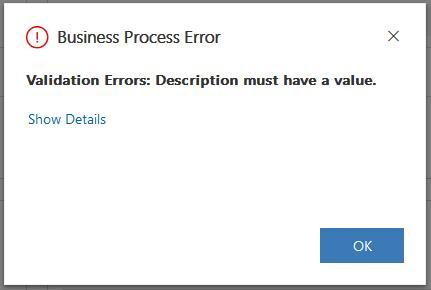
When running rules from a plugin, you may want to cancel any changes that have been made to the entity as well as any changes made from rules. One way to accomplish this is by returning a validation error from the rules. If the plugin detects any validation errors, it will skip saving any changes made by the rules and stop the plugin pipeline to prevent any further changes. If an end user is saving or creating an entity and this happens, they will see the following error:
For a better validation user experience, you can also run rules on the 'OnSave' event of a form, as described in the Form Events section.
Plugin Registration Tool (Advanced Scenarios Only)
This tool registers all steps to Post Operation stage of execution. If an alternate stage is desired the registration will need to be modified with the Microsoft Plugin Registration tool linked and pictured below. Other custom configuration scenarios may include changing the Execution Mode to 'Asynchronous' or adjusting the Execution Order.
You will also need to use the registration tool if you want to register the plugin to events other than 'Create' or 'Update'. Link to download SDK tools: https://docs.microsoft.com/en-us/dynamics365/customer-engagement/developer/download-tools-nuget
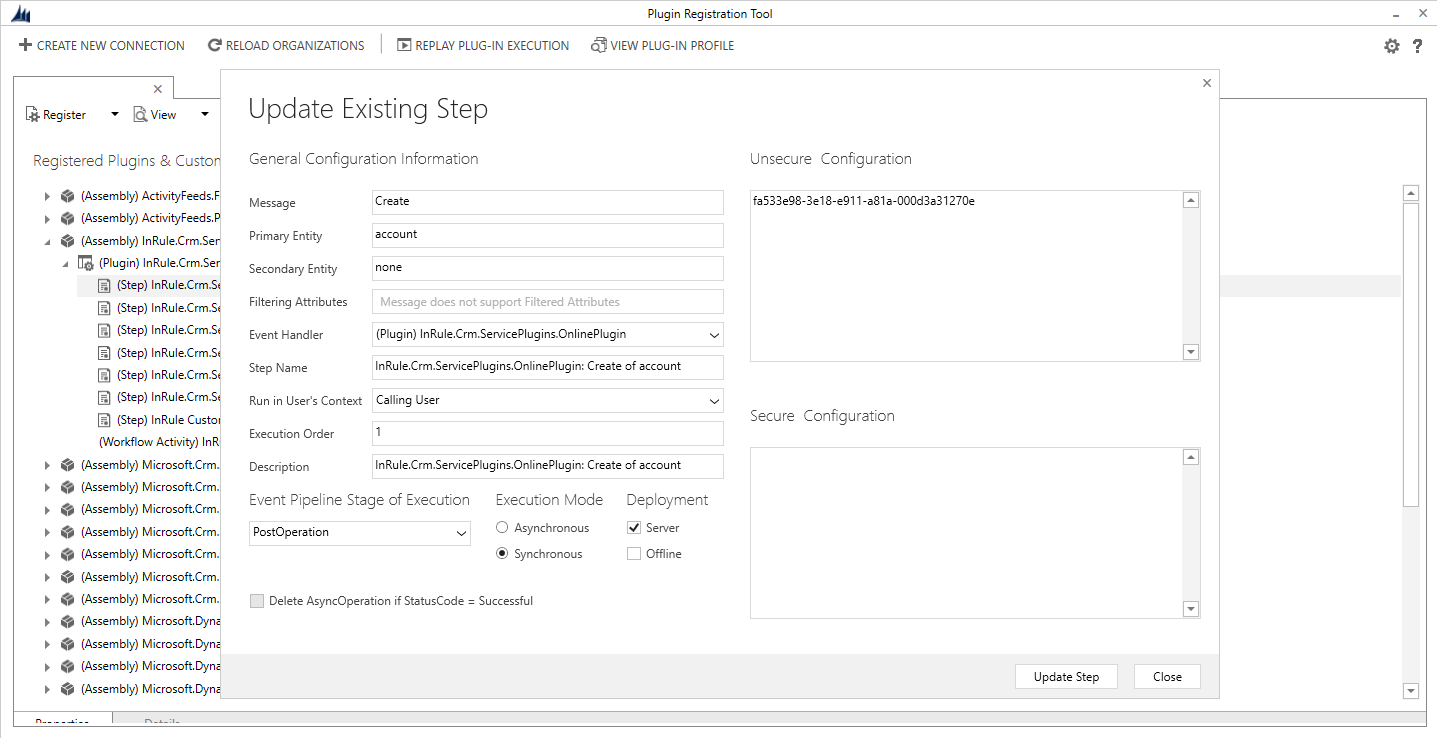
The unsecure configuration field contains the GUID identifier for the associated Rule Configuration. If there are additional inrule_RulesEngineAction steps they will all be stored in this configuration field on the InRule Custom Action Step as entity name, ID pairs.