Methods for Executing Rules from Dynamics 365 and Power Platform
InRule supports several methods for the execution of rules from both Dynamics 365 and Power Platform. As Microsoft has evolved its singular app platform vision across Dynamics 365, Power Apps, and Power Automate, many of the common integration techniques employed for one or the other, can now be extended to all. This is made possible by Dataverse which is the backbone data integration service across Dynamics 365 and Power Platform. InRule for Dynamics 365 is designed to work directly with Dataverse entities for event handling, data loading/saving, and schema mapping functions.
The diagram below depicts the high-level integration flow for InRule with Dynamics 365, Power Apps, and Power Automate in an Azure Cloud Environment.
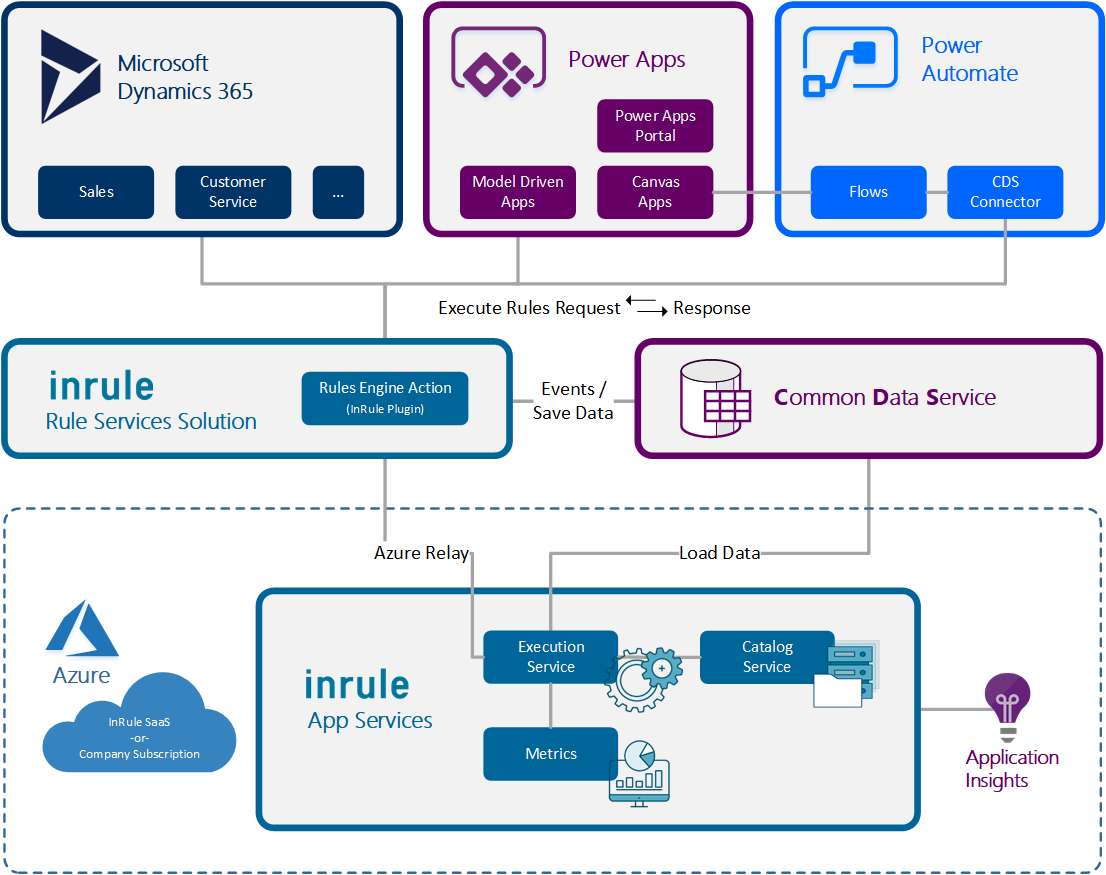
The following sections provide a detailed overview of the methods for executing rules and how they apply to various aspects of Dynamics 365 and Power Platform. While the listed methods provide proven coverage across most functional needs, your implementation needs may vary, so this guide provides more technical details to help you create the right solution.
| Method of Rule Execution | Dynamics 365 | Power Platform | |||
|---|---|---|---|---|---|
| Power Apps | Power Automate | ||||
| Model-Driven Apps | Canvas Apps | Power App Portal | |||
| Dataverse Events (Plugin events) | ● | ● | ● | ● | ● |
| Rules Engine Action (InRule Plugin) | ● | ● | ◑ | ◑ | ● |
| Run Rules Button | ● | ● | |||
| Workflow Activity | ● | ● | |||
| Form Events | ● | ● | |||
| JavaScript | ● | ● | |||
One thing that is consistent across all options is that each support mapping entity data to be used in execution of rules. InRule for Dynamics supports both explicit and auto rule sets, in addition to decisions. All these options can be used together, and each have factors to consider when choosing which to use. Some of the key considerations are outlined below.
User Control
If users need to be able to execute rules on demand, the Run Rules button and Workflow activity are the easiest choice to work with. The Run Rules button is displayed on the command bar of every entity, so it can easily be clicked at any time by end users to get feedback from rules. Using the custom workflow activity also allows rules to be run on demand, potentially as part of a more complex process that contain a rules processing step.
Rules can be invoked indirectly by the user by tying rule execution to events within Dynamics. The typical way to accomplish this is by configuring the InRule plugin to run on entity Create or Update events. Form events like field change or form save can also be used to trigger rule execution. For more advanced form scenarios, like integrating with another command bar button, custom JavaScript can also be used. The included Custom Action can even be used to respond to user events outside Dynamics, by providing a web API endpoint that can be accessed by external systems.
Display in the User Interface
If you want to display information to the end user based on rule execution, the run rules button is the easiest method. When executing rules from the button, any Errors, Warnings, and Informational notifications will be shown in the notification pane, along with any Validations. Executing rules via the included form events helper function or calling the executeRules function from custom JavaScript will also display the same information.
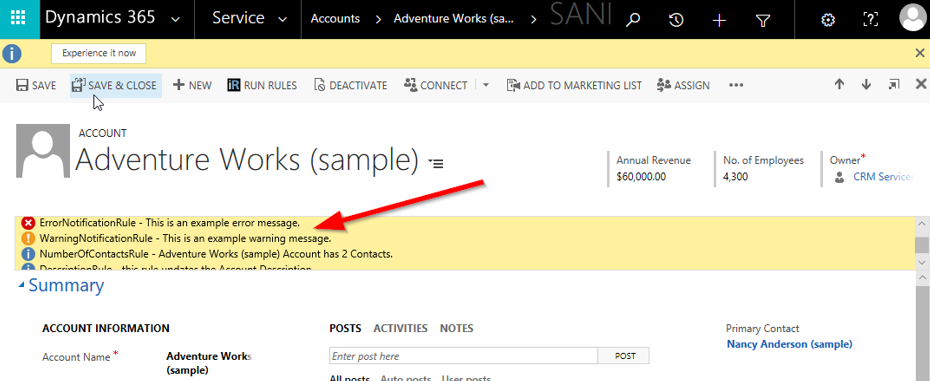
Using the custom workflow activity itself will not display any data in the UI, but the workflow activity does provide output variables with the results of rule execution that can be displayed in a dialog or output via some other method if desired.
Plugin events will not typically display any info in the UI, but any errors or validations will show up in the plugin error pop-up if the plugin is set to run synchronously.
Execution Against Dirty Data
If you need to execute rules against dirty form data, or any entity state other than what is saved to the database, you can enable the Use Dirty Entity Image setting as described in An Explanation of the InRule Custom Action Options. If this option is enabled when running rules from the Run Rules button, the current form values will be collected and sent to the rules. This can be used to perform form value validation, or to provide insight into a what-if scenario prior to changes being saved. This same config value also governs the behavior for form events or any custom JavaScript that calls executeRules.
The custom workflow activity and plugin events do not provide the ability to specify a dirty entity image. They can only run against the data provided by the plugin pipeline. However, in the case of a plugin entity update event the entity change image is automatically included. In addition, the custom action provides a dirtyEntityImage field that accepts a json-serialized entity image.
Responding to API Events
If you want to always execute rules when an entity changes, no matter how those events are initiated, you need to register the included plugin to an event. Running rules based on plugin events means that not only will rules be executing when creating or saving entities from within the Dynamics 365 Entity Forms UI, but they are also executed when entities are changed through API calls.
API calls are frequently consumed by 3rd party add-on user interfaces, Extract-Transform-Load (ETL) synchronization with other software products, and by custom software solutions as an integration point with Dynamics 365. By utilizing this option, an implementer can take advantage of rule execution for needs beyond the Dynamics 365 Entity Forms UI.