Deploying the Dynamics 365 Rule Execution Web Service
1: Open Your "RuleExecutionOnPremService" Folder
For guidance on how to find this folder, reference the "Required Files" section above. The folder will need to be copied onto the IIS server you set up your website on in the previous section.
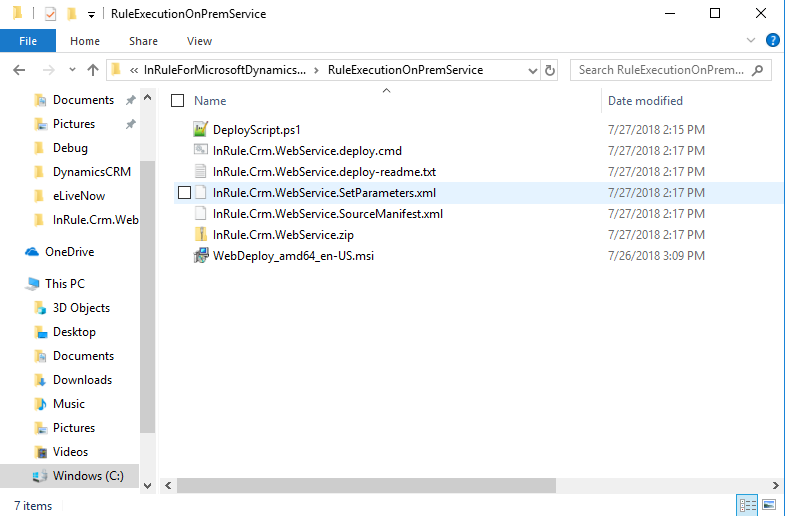
2: Open the InRule.Crm.WebService.SetParameters.xml File in Notepad or a Similar Text Editor
<?xml version="1.0" encoding="utf-8"?>
<parameters>
  <setParameter name="IIS Web Application Name" value="InRule.Crm.WebService" />
  <setParameter name="UseInRuleCatalog" value="true" />
  <setParameter name="CatalogUri" value="http://localhost/inrulecatalogservice/service.svc" />
  <setParameter name="CatalogLabel" value="LIVE" />
  <setParameter name="CatalogUser" value="admin" />
  <setParameter name="CatalogPassword" value="password" />
  <setParameter name="CatalogSSO" value="false" />
  <setParameter name="RuleAppDirectory" value="C:\RuleApps" />
  <setParameter name="DynamicsCRM-Web.config Connection String" value="AuthType=AD;Url=; Domain=domain; Username=; Password="/>
</parameters>
3: Change Placeholder Parameter Values to Real Values
| # | Parameter | Description |
|---|---|---|
| 1 | IIS Web Application Name | The name of your IIS website as defined in the "Setting up the Catalog Web Service in IIS" section |
| 2 | UseInRuleCatalog | Defines if the catalog is being used to store rule apps. Set to true if using the catalog, and false if using file system |
| 3 | CatalogUri | The URI for the Catalog Service that will be used |
| 4 | CatalogLabel | Defines the label text used to by the service to target the specific rule app in the catalog. Labels are assigned to rule apps in the catalog |
| 5 | CatalogUser | Username for Catalog Service, default value is 'admin'. |
| 6 | Catalog Password | Password for Catalog Service, default is 'password', please change this using the catalog manager! |
| 7 | CatalogSSO | Defines whether to use app pool identity to authenticate to the catalog web service |
| 8 | RuleAppDirectory | Specifies the directory where rule apps will be stored if using file system instead of the catalog. If using the catalog, leave as-is. |
| 9 | DynamicsCRM-Web.config Connection String | Provide a Dynamics connection string. Information on connection string formatting can be found here: https://docs.microsoft.com/en-us/dynamics365/customerengagement/on-premises/developer/xrm-tooling/use-connection-strings-xrm-tooling-connect Important: Some customers have reported needing to provide a username in the format "domain\username" in order to successfully connect using IFD. |
4: Save Your Changes
5: Launch PowerShell as an Administrator
6: Navigate to the "RuleExecutionOnPremService" Folder
PS C:\InRuleForMicrosoftDynamicsCRMIntegrationFramework\RuleExecutionOnPremService>
7: Run the "DeployScript.ps1" File
PS C:\InRuleForMicrosoftDynamicsCRMIntegrationFramework\RuleExecutionOnPremService> .\DeployScript.ps1
Observe that no errors occur while this script does its work.
It is worth noting that when deploying plugins without isolation in an on-prem environment, Dynamics requires that the user registering the plugin must be added as a Deployment Administrator from Deployment Manager. If the registering user lacks the proper permissions, when deploying the package Dynamics will return an error stating "Assembly must be registered in isolation."