Rule structure and Rule flows
Rules overview
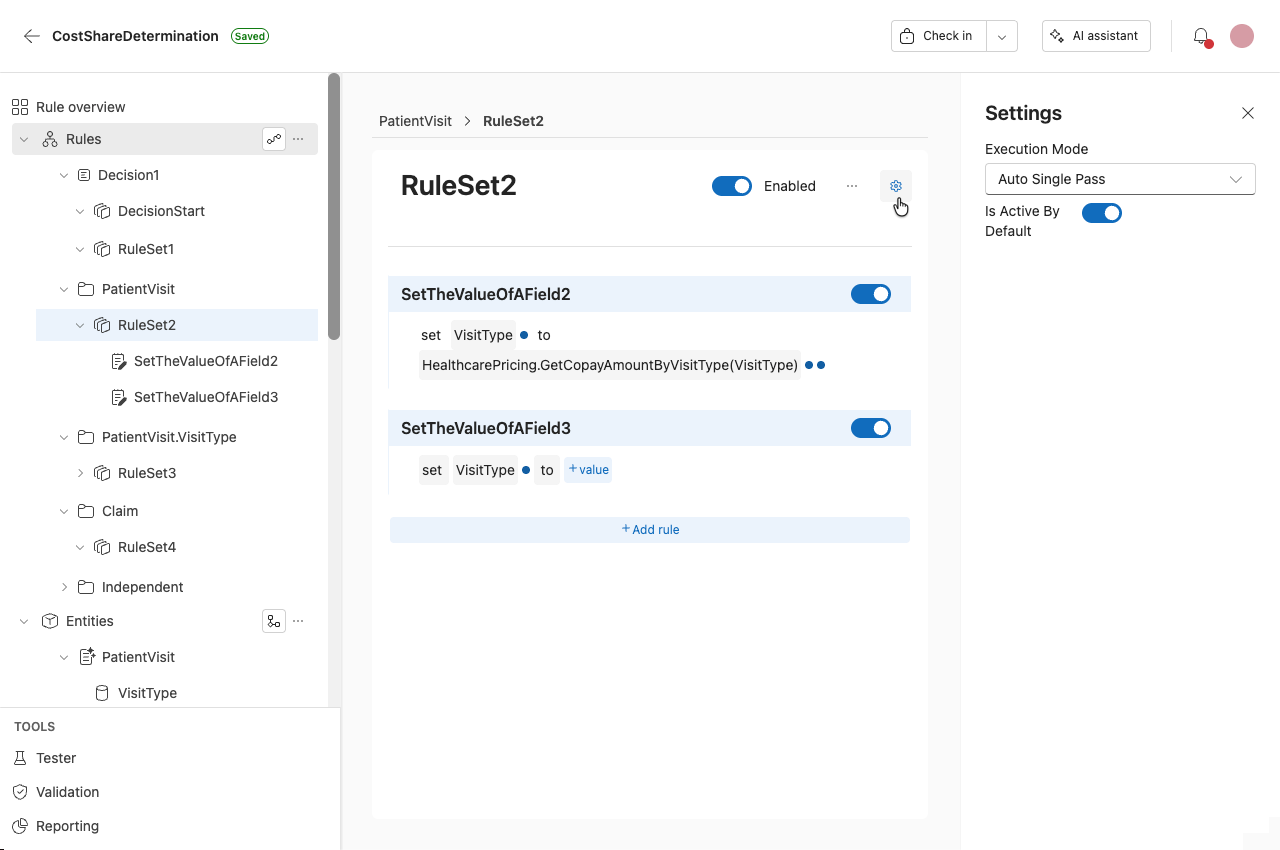
All Rule Sets and rules appear under the Rules folder in the navigation pane.
The Rules folder contains:
- A folder for each entity, field, or collection that has a Rule Set specific to its context
- A folder that contains all Independent Rule sets
For more information about Rule sets as concepts, see the existing documentation on Rule sets.
To navigate to Rules, expand the Rules tab in the navigation pane.
Rule flows
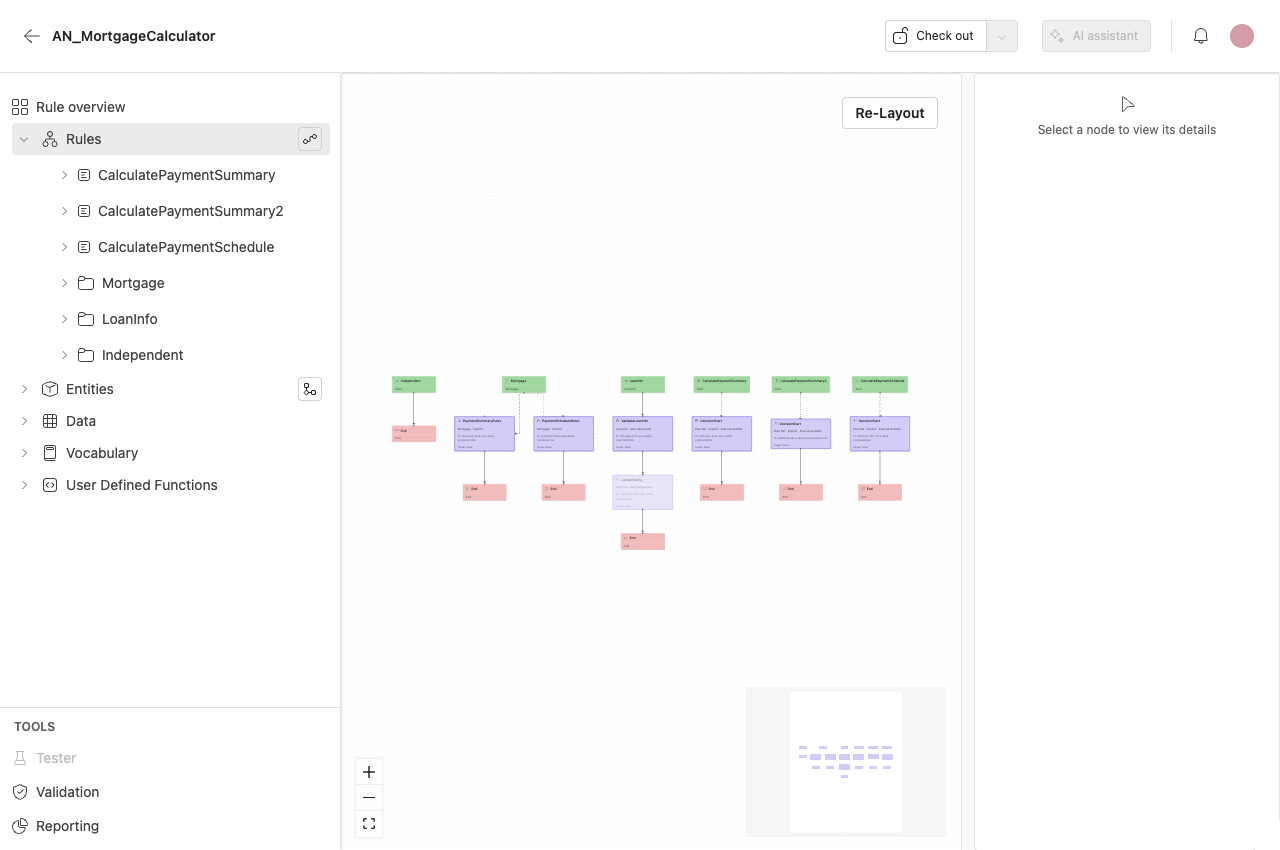
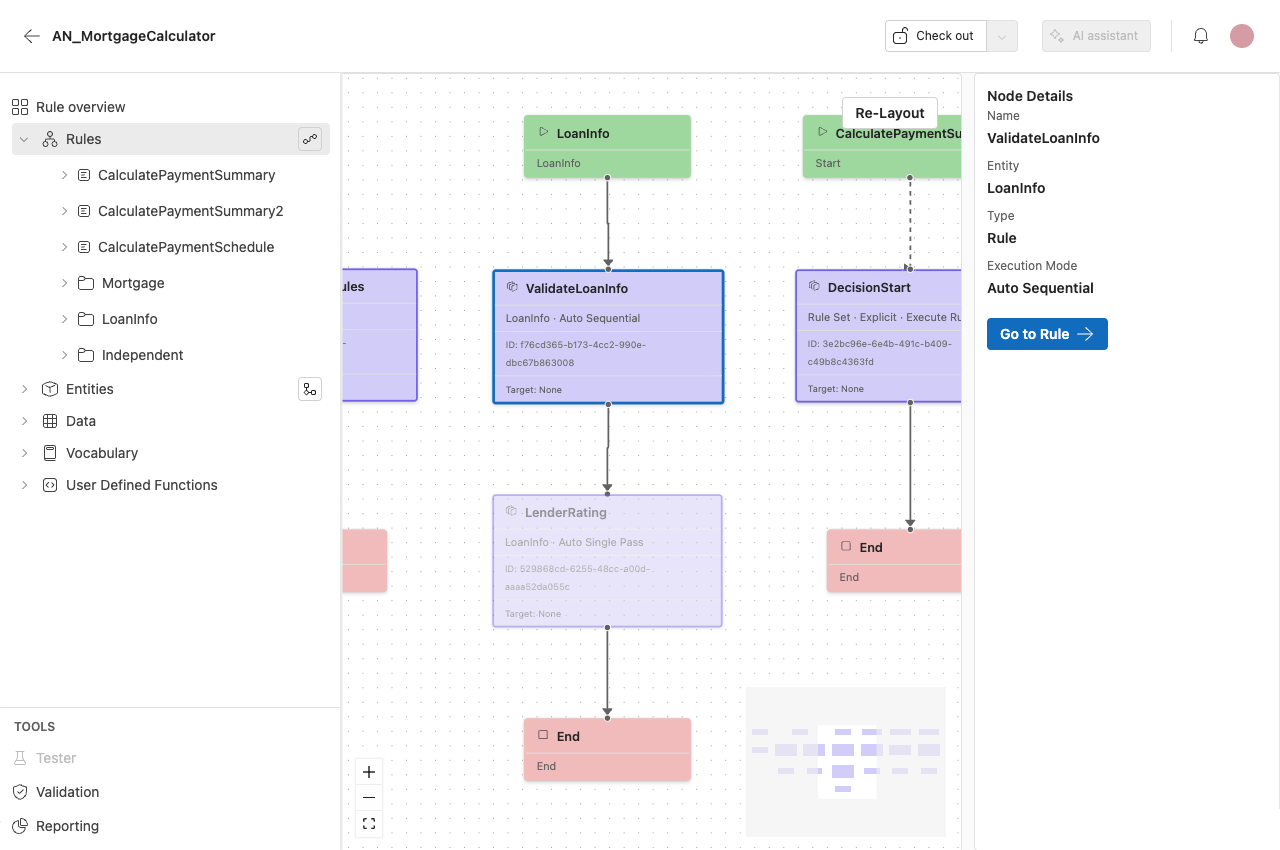
The Rule flow provides an overview of your rule application. It visually represents the structure and flow of Rule sets.
It is possible to make edits from this view.
Editing behavior
Edits made in the diagram update the corresponding Rule sets in the rule application.
The diagram reflects the current structure of the rule application and can be used to reorganize or navigate Rule sets.
Rule flow features
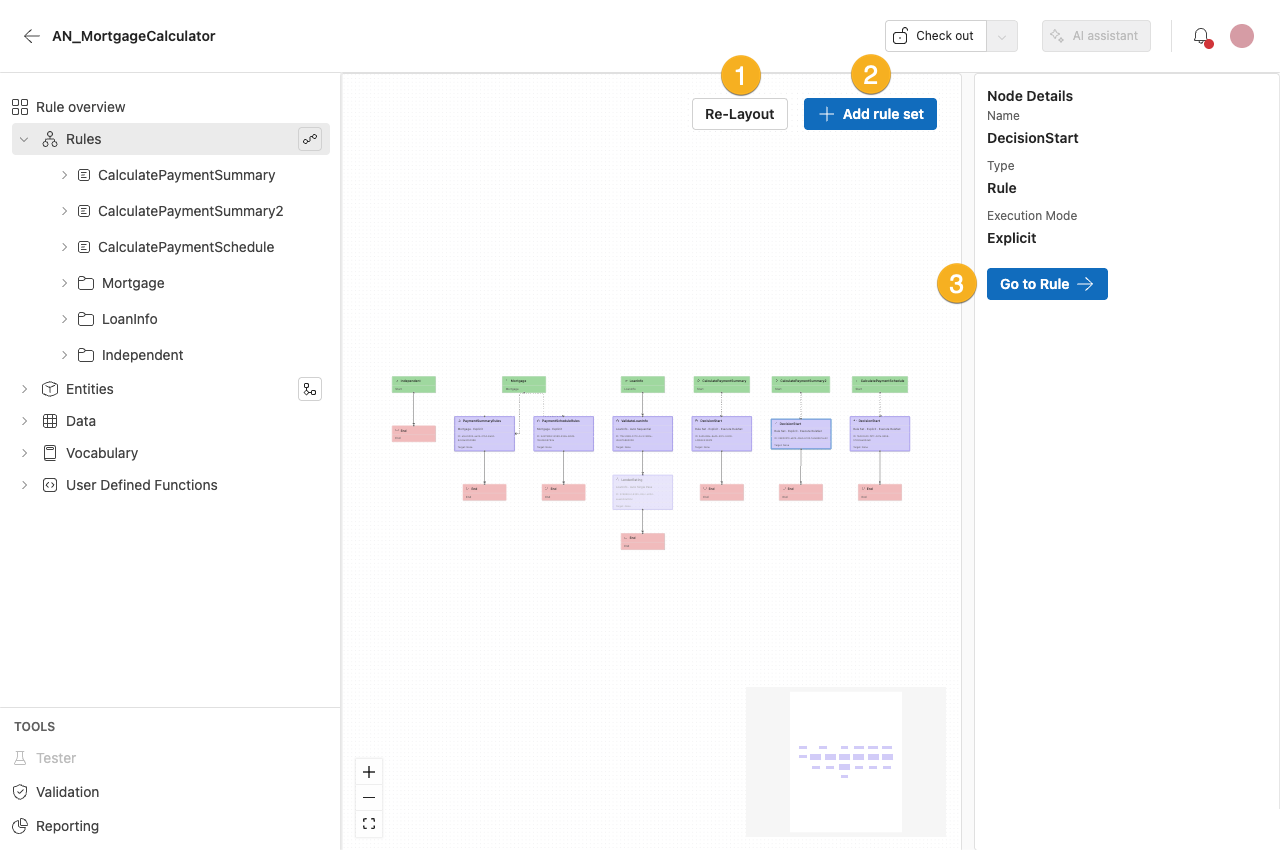
1. Re-Layout
Tidies up the Rule flow after edits.
2. Add Rule Set
Adds a Rule Set to your Rule flow and your rule application.
3. Go to Rule
Navigates to the editor for that rule.
Key
- Purple: Rule sets (dependent)
- Red: End
- Grey: Folders
- Green: Entities, Rule sets (independent), Start
- Dotted lines: Explicit Rule sets
Working with the diagram
Use the Rule flow and the entity Data model to see how your rule application fits together and to move around it quickly.
- Pan the canvas by dragging with the right mouse button.
- Follow how your rules run. A line connecting one rule-set node to another means the first rule set explicitly runs the second — including when it does so through an Execute decision or Execute member ruleset step. Use these connections to trace the execution path without opening each rule set.
- Connections are not editable. You cannot select, move, or redraw a connection on the canvas. To change how your rule sets run, edit the rule sets themselves.
Rule folders and rule sets
Add a rule folder or a rule set
-
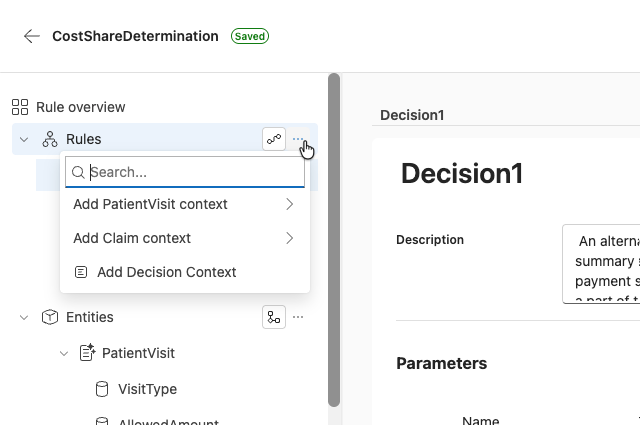
Open the rule menu.
-
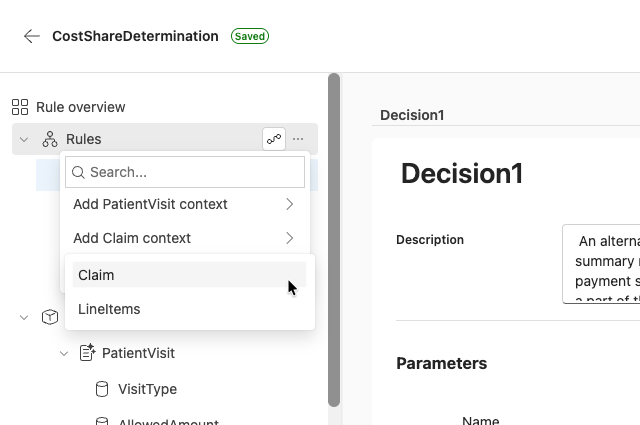
Select the context for your new rule. This creates a folder with the name of the entity.
-
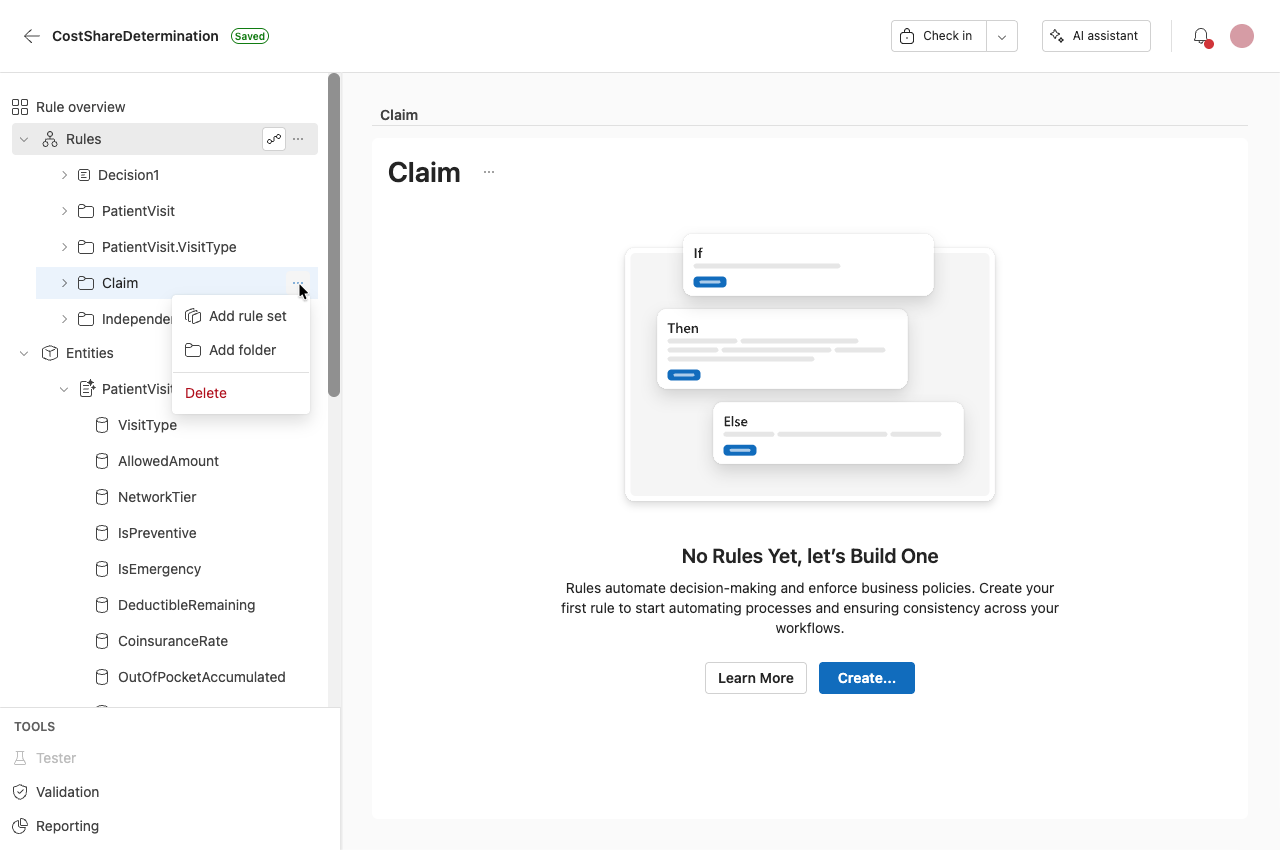
From here you can add a rule set or a folder.
-
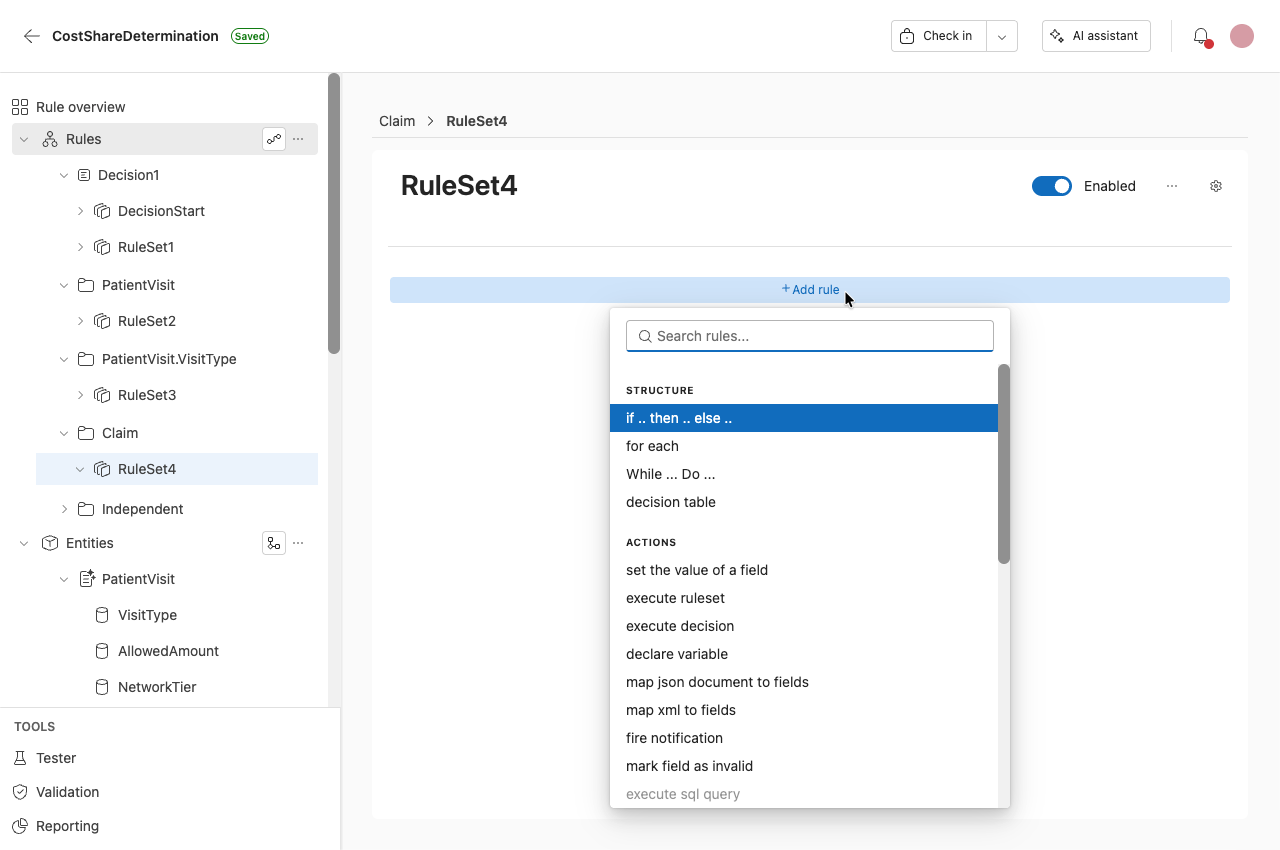
Within the Rule Set you can begin adding rules.
-
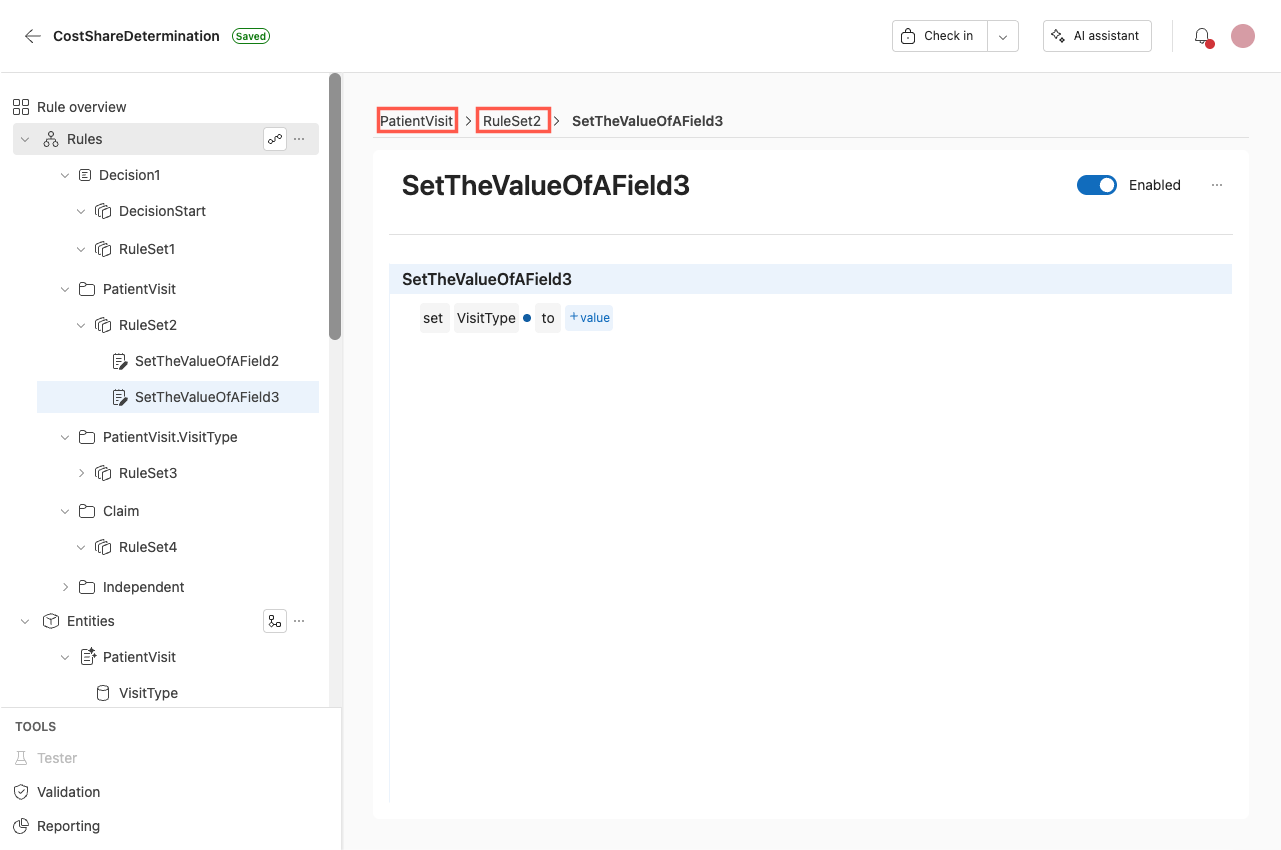
You can click anywhere in the breadcrumbs to navigate to that location in the rule.
Rule settings
Open the Rule settings by clicking on the settings icon.