Options for Self-hosting
Deployment in Azure App Services
There are two methods available for deploying self-hosted Decision Services:
- Use the InRule listing on Azure Marketplace Azure Marketplace offers a simpler, UI-driven process that guides you through deployment.
- Deploy using the provided ARM template A deployment using the ARM template will provide you more control over settings and configuration.
Deployment with Docker Containers
InRule publishes Linux-based Docker images so you can self-host Decision Services on the platform of your choice, including Azure, AWS, and Google Cloud, with the option to run in Kubernetes or any other container orchestrator. See InRule's Docker Hub for the available images and the readme for each component.
Deployment in IIS
The IIS self-hosted deployment package is available from the Azure App Services releases page under Assets for the selected release. Download the IIS deployment, InRule.Runtime.DecisionService.IIS.zip, for the version of Decision Services you are installing.
Prerequisites
Before deploying the package, make sure that:
- IIS is installed on the target server.
- The .NET 10 ASP.NET Core Hosting Bundle is installed on the target server.
- Deployment is run from an elevated Command Prompt or PowerShell session.
- You have the configuration values required for the deployment package, including the IIS application name, Catalog Service URI and credentials, and Decision Services API keys.
Configuration
The IIS package includes a SetParameters.xml file for the required deployment values, but some optional runtime settings are not part of that base parameter set. For example, settings such as the rule application label may need to be added or updated directly in the deployed web.config after deployment. If configuration values are changed after deployment, restart the IIS application so the changes are picked up.
The IIS deployment package also includes a README with the detailed deployment steps, package contents, and post-deployment guidance. Use that README as the primary reference when performing the installation.
Authentication
Self-hosted
For a self-hosted deployment of Decision Services, you will need to include the API key provided during the deployment configuration as the "inrule-apikey" header value on your requests to be able to authenticate to the service.
Example:
"inrule-apikey": "yourapikey"
Swagger
If you want to make use of the Swagger UI for your Decision API, you will need to include the API key as a query string in the URL. The query string key should be the API key and the value will be your API key. Below you can see an example of a URL that includes the query string.
Swagger Page URL:
https://<domainname>/api/swagger/index.html?inrule-apikey=<apikey>
Swagger Json URL:
https://<domainname>/api/swagger/swagger.json?inrule-apikey=<apikey>
- Replace the <domainname> with the default domain listed on the overview page of your deployed resource.
- Replace the <apikey> with the API Key value you included in the configuration when deploying your self-hosted Decision Services.
The same approach applies to view the Swagger for the Rule Execution API.
Health check configuration
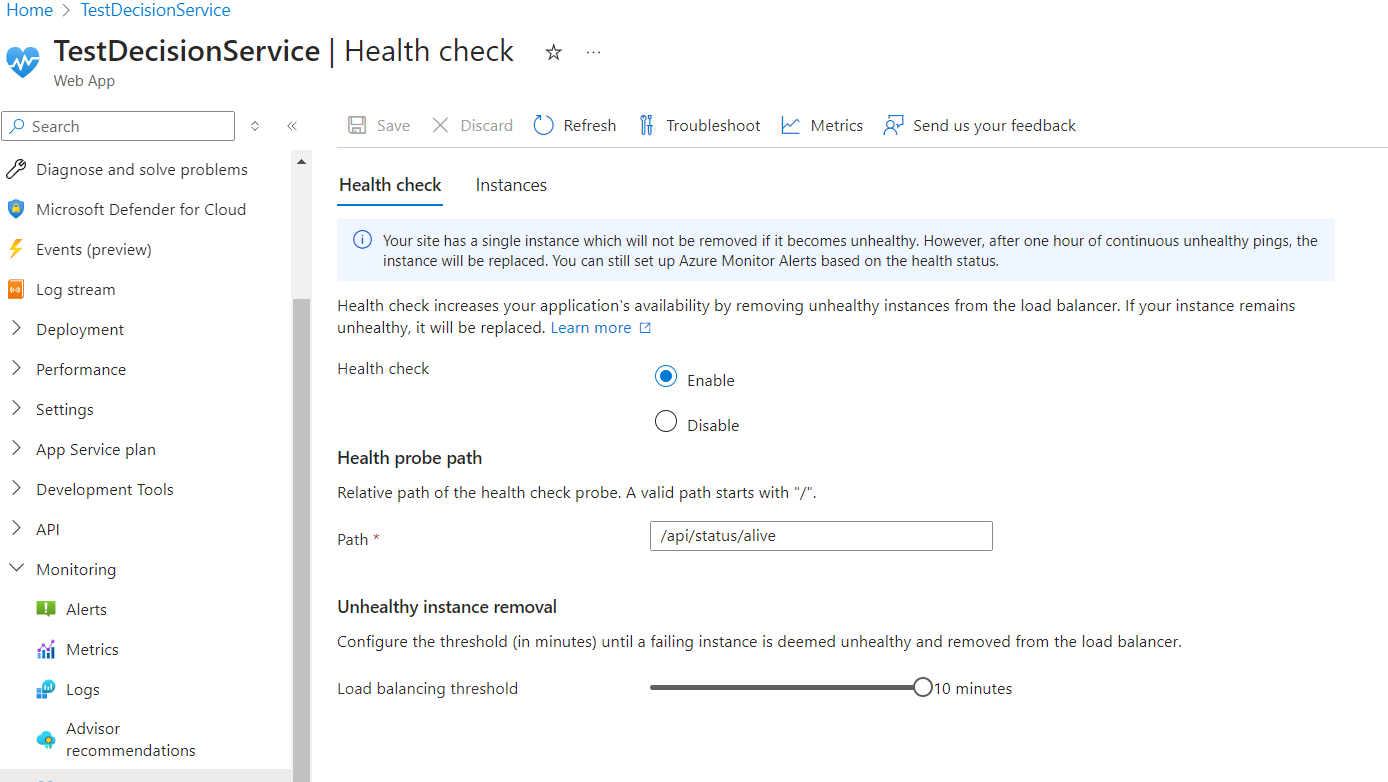
Health check will be automatically enabled and configured for self-hosted deployments of Decision Services. By default, the health check will be directed at the API/status/alive endpoint. If you would like to change the health check configuration, you will need to navigate to the overview page of your deployed resource and click the link displaying the health status.
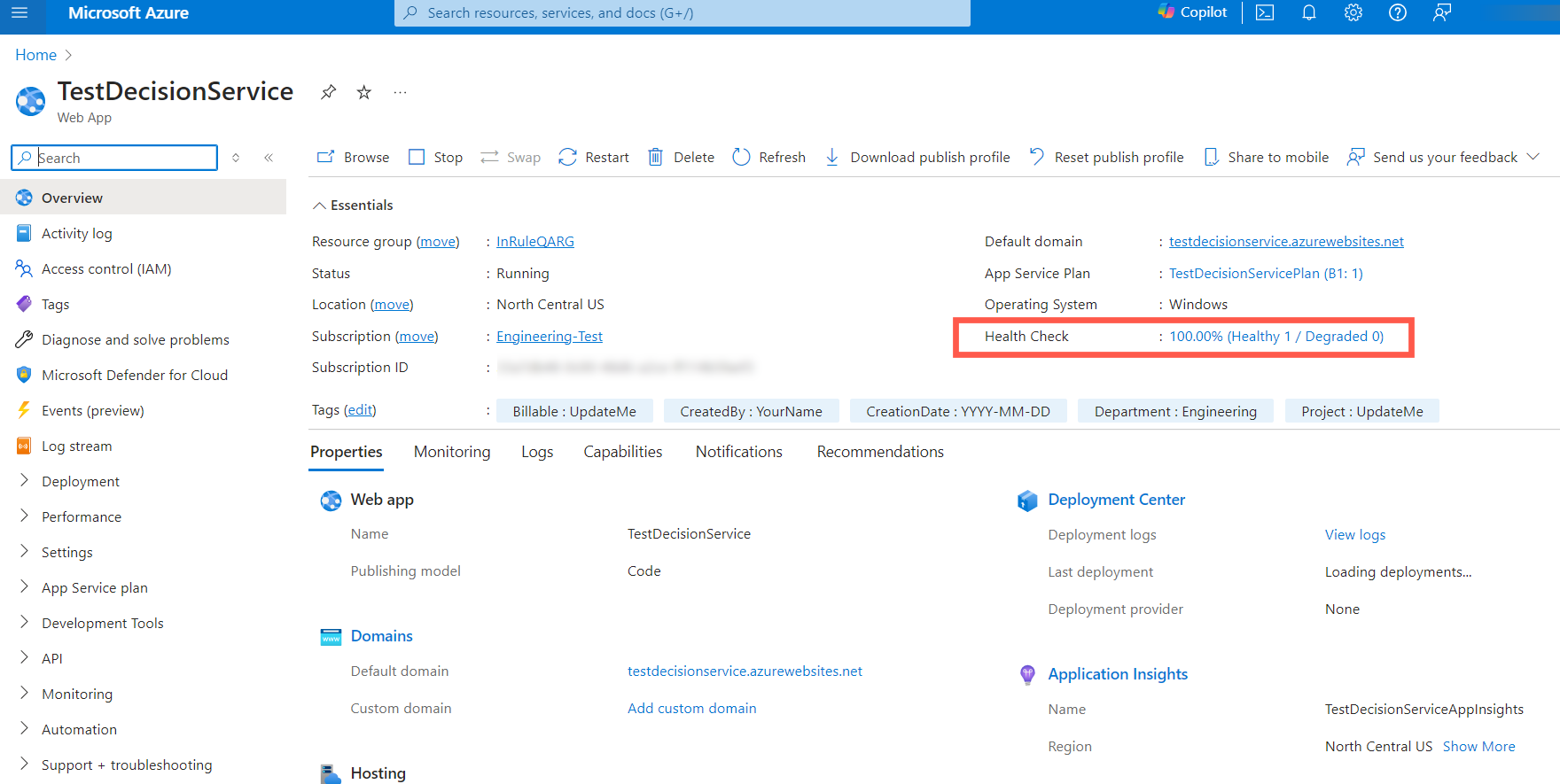
This will take you to the health check configuration page where you can
- Enable/Disable the health check
- Change the endpoint being called
- Set the load balancing for unhealthy instances
Deploying Dynamics and Salesforce RuleHelper Connectors
InRule Decision Services can execute rule applications that call the Dynamics and Salesforce RuleHelper connectors. This integration allows Decision Services to retrieve and process CRM data directly from Dynamics or Salesforce without using the Integration Framework or external services. It is best suited for targeted scenarios where lightweight connector access is preferred over full integration service orchestration.
Setup Requirements
Manual configuration is required for both InRule SaaS and self-hosted environments.
For InRule SaaS
The Dynamics and Salesforce RuleHelper connectors are provisioned and configured by the InRule Cloud Ops team. To enable connector use in SaaS Decision Services, create a support ticket via the Support request form or email support@inrule.com.
For Self-Hosted Environments
Self-hosted Decision Services require manual deployment of the RuleHelper components and configuration settings.
Get the DLLs
- Download the Integration Framework ZIP files for Dynamics and Salesforce from the InRule Support Download InRule Software site.
- In each ZIP, locate the DecisionServicesRuleHelper folder.
Copy the DLLs to EndpointAssemblies
Copy all files from each DecisionServicesRuleHelper folder into the EndpointAssemblies folder in your Decision Services installation directory.
If the EndpointAssemblies folder does not exist, create it at the root of the Decision Services installation directory.
Configure dummy SaaS settings
Some RuleHelper functionality references SaaS configuration labels. To enable these connectors in self-hosted deployments, define the following environment variables with placeholder (“dummy”) values:
inrule__api__appconfigurationservice__dynamicslabel=DummyDynamicsLabel
inrule__api__appconfigurationservice__salesforcelabel=DummySalesforceLabel