Updating a Dynamics 365 Regression Test Suite
This section describes how to update a Test Suite with existing Microsoft Dynamics 365 records. Since the data used in test suites is saved locally on a machine, this functionality provides a way to easily update that data with the latest values available in the Microsoft Dynamics 365 instance.

Select the Test Suite File
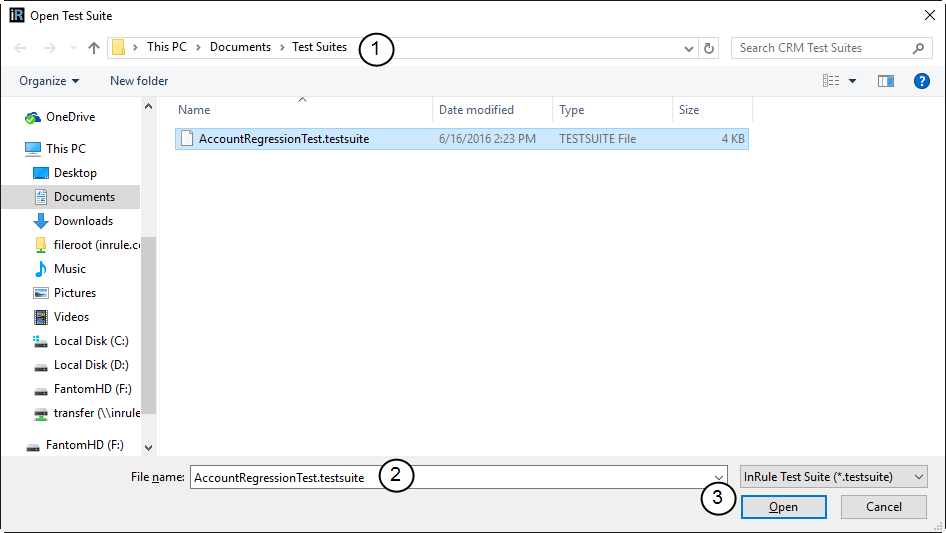
- If necessary, navigate to the location of the Test Suite file.
- Select the Test Suite file.
- Click Open.
The Select Microsoft Dynamics 365 Environment window appears.
Select the Microsoft Dynamics 365 Environment
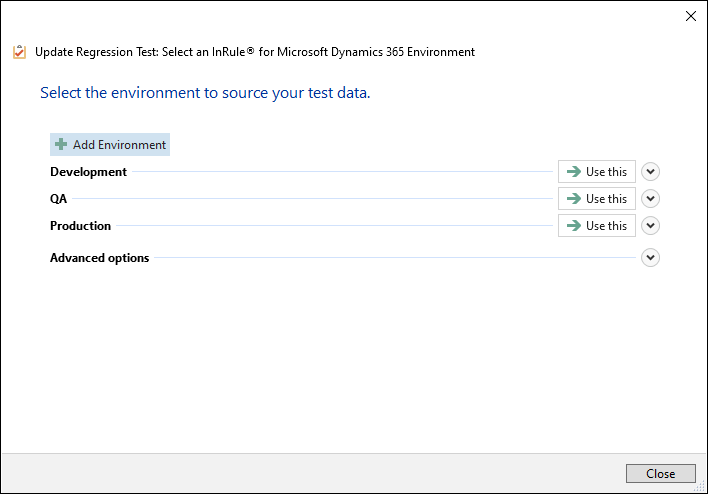
Select the environment you want to use to update the Test Suite by clicking the "Use this" button.
Log In to Microsoft Dynamics 365
You will be logged in to Microsoft Dynamics 365 if needed.
A message window appears with instructions for the next step.

Click OK, and the irVerify window appears.
Open the Test Suite
Once you are in irVerify, open the test suite.
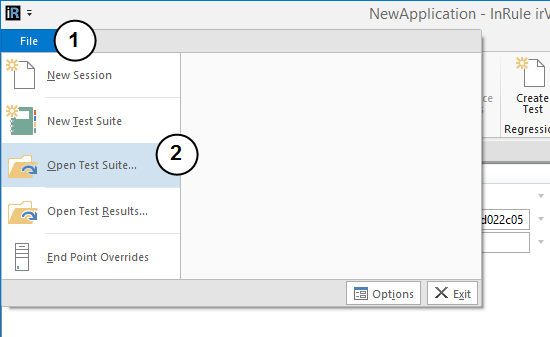
- Click File to expand the File menu.
- Click Open Test Suite.
The Open Test Suite window appears.
- If necessary, navigate to the location of the Test Suite file.
- Select the Test Suite file.
- Click Open.
The Test Suite tab appears in irVerify.
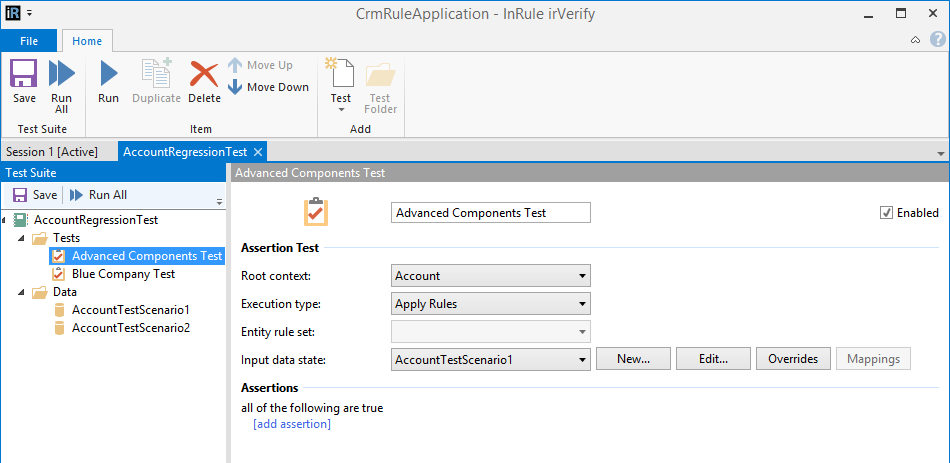
Proceed with your testing.