How to Submit a Support Ticket
The InRule Decisioning Support team primarily handles reports from customers and partners with any issues or problems they are having with the software. The best way to contact the support team is via the Submit a Request feature in the Help Center.
If you are on a trial and have questions, please email your questions to info@inrule.com.
Create a Ticket
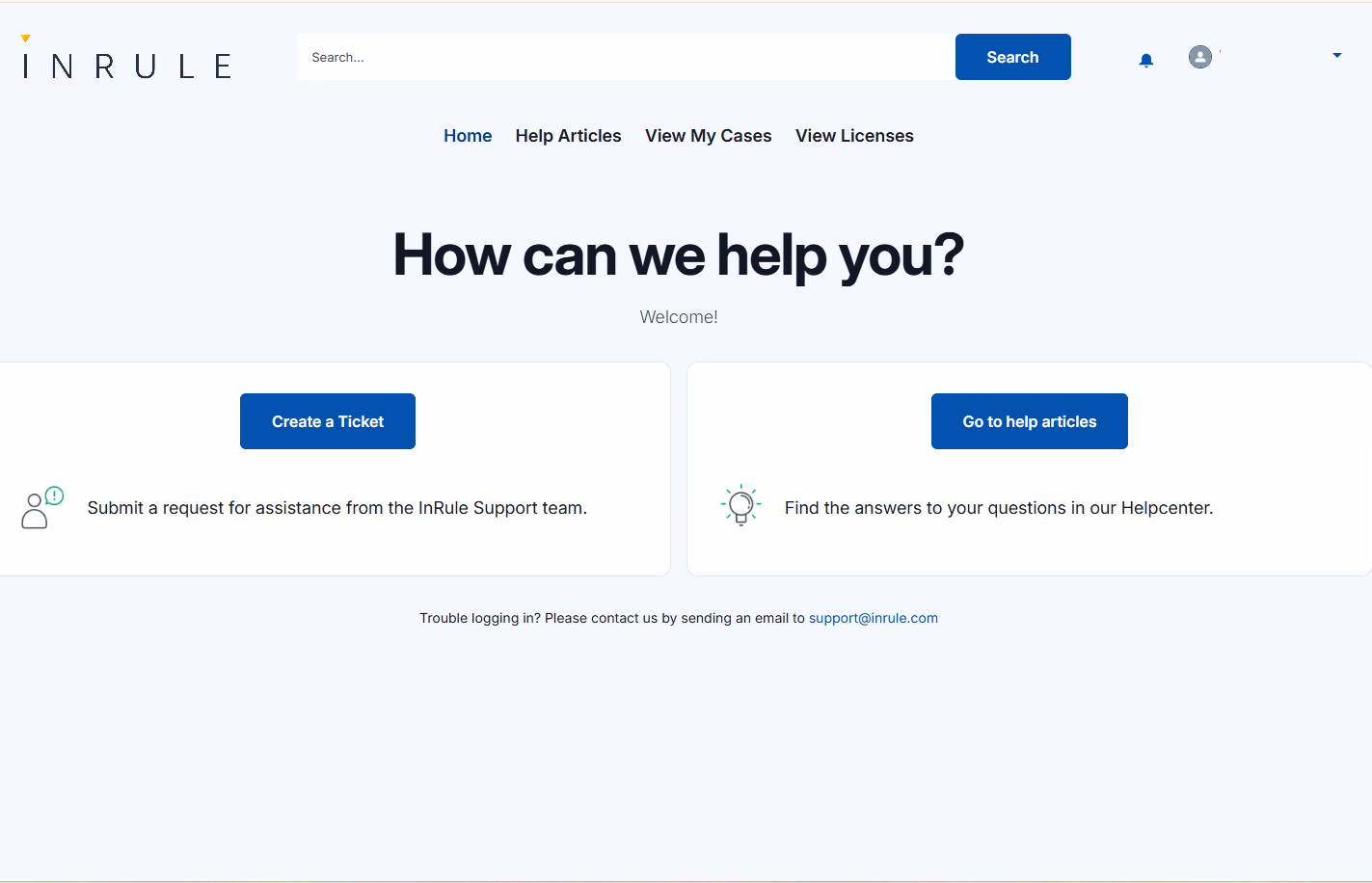
You can find the request form here or by clicking on the Create a Ticket link on InRule's Help Center.
You must be signed in to create a ticket.
Create a Case Form
All you need to create a support case is a subject, description, and priority. Below you can find tips for how to fill out the form, like how to select the priority that applies to your situation.
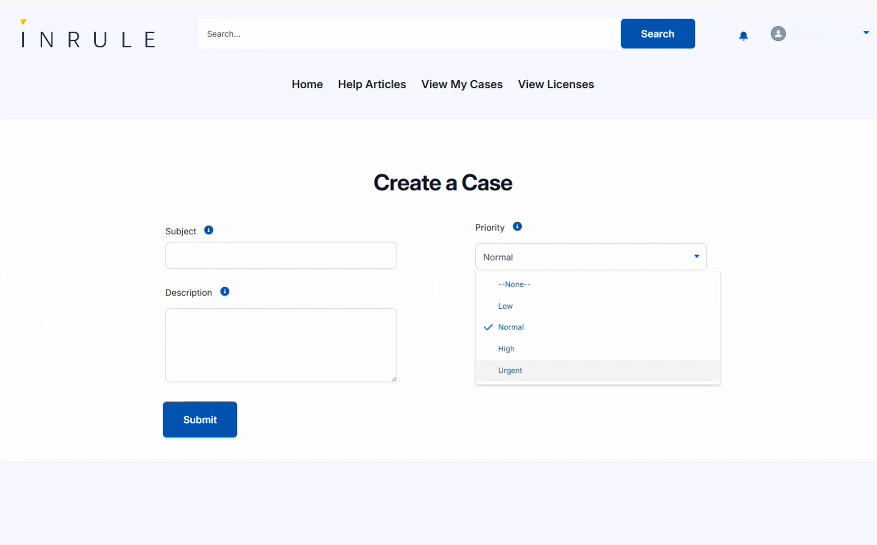
- Subject
Create a title for your case - Description
In the description section, provide all possible details. For example, error messages, log entries, and any details you would include in an email or on the phone should be included here. - Priority
From the drop-down, select the level of urgency for your request:
- Low – Documentation request, general inquiry, etc.
- Normal – Almost everything. Non-blocking errors, how-tos, license issues, etc.
- High – Significant impact, slow-downs, etc., but able to work.
- Urgent (Outage) – InRule service is down, no processing is taking place.
- Submit When you are satisfied with the information you have provided, click Submit.
Attachments
Attachments can only be added to a case that already exists in the system. First submit your case and then add attachments in the Files section of the existing case.
Add an attachment
- Create and submit a case.
- Navigate to View My Cases.
- Open the case and scroll to the bottom of the page.
- Select Add Files in the File section at the bottom of the case.

Helpful attachments
Examples of helpful attachments include, but are not limited to:
- The specific rule-app, if applicable
- Test data (example payload, etc.)
- Screenshots
Submitted requests
Once submitted, your request is visible on the View My Cases page along with your previous requests.
Status types
- Solved: The request has been marked as solved and will automatically close at a later date.
- Open: The case is currently with the Support team and will be updated with further information when available.
- Awaiting your reply: The Support team has updated the request and is awaiting a response from you.
Updating a request
Any request marked Open can be updated with additional information, files, or email addresses.
To add information to a case
- Open the request and you will see an email and text field at the bottom of the request.
- Add your comment and click Submit.
- You can change the priority of your case in the case information section.