Configure Centralized Authentication in Entra ID
Global Administrator permissions in Entra ID is required to configure centralized authentication in Entra ID. The approver doesn't need to be the person who will use InRule, and doesn't need an InRule account. If you aren't a Global Administrator, send these steps to your IT team.
Setup and Configure
- Go to cloud.inrule.com.
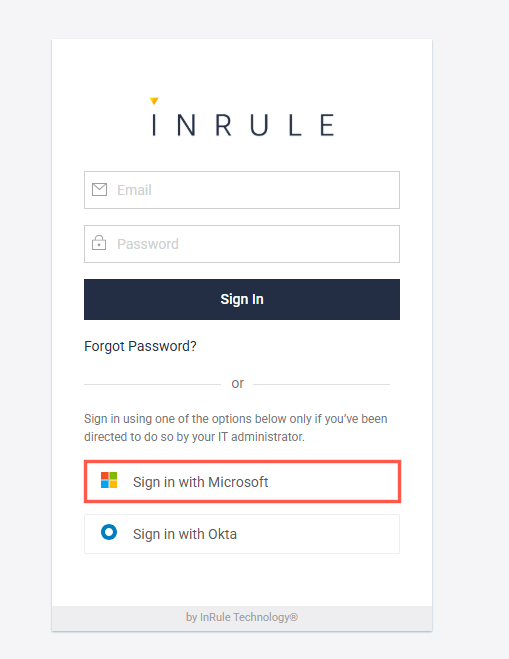
- Click Sign In With Microsoft and log in with your Entra ID credentials
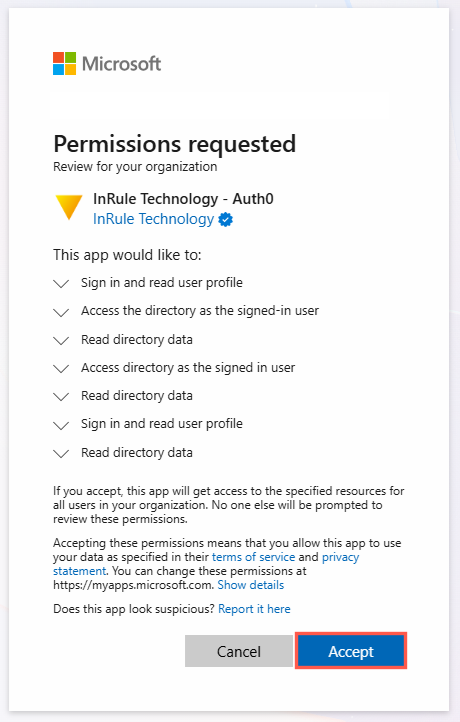
- Click Accept to approve InRule Technology as an authorized application. You must have Global Administrator permissions in the Azure tenant to approve the InRule app in Entra ID.